Filter: Safe | Thu, Aug 6, 8:52 AM CDT

Renderosity Forums / Carrara


Welcome to the Carrara Forum

Forum Coordinators: Kalypso, Anim8dtoon

Carrara F.A.Q (Last Updated: 2026 Jul 30 8:26 pm)


Visit the Carrara Gallery here.

Carrara Free Stuff here.

 
Visit the Renderosity MarketPlace - Your source for digital art content!


Subject: Spline Modeling?


Angelouscuitry ( ) posted Sun, 11 February 2007 at 12:27 AM ยท edited Thu, 06 August 2026 at 8:11 AM

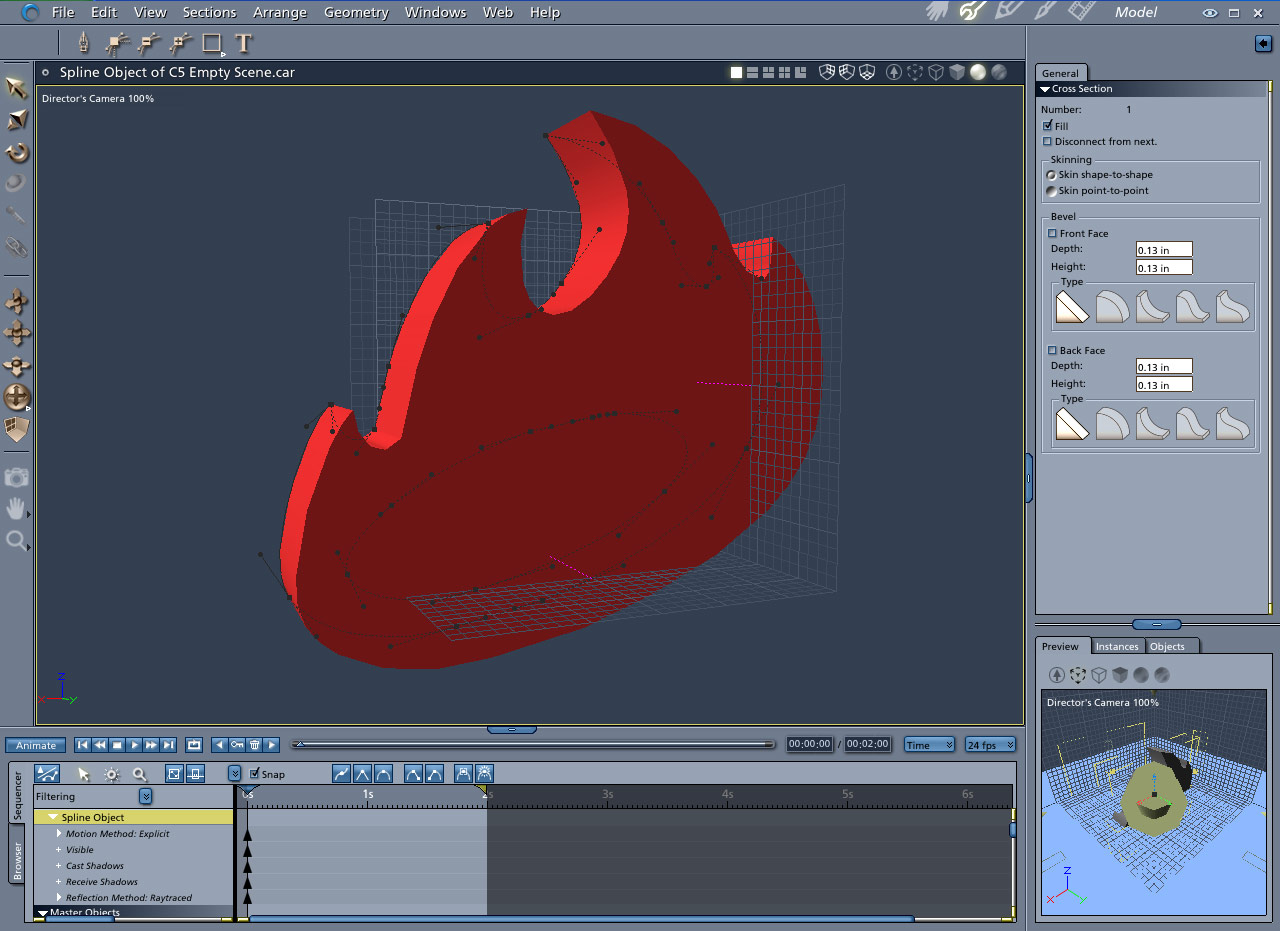
file_368619.jpg

Spline modeling looks like a great way to create objects, because you can start with Photoshop Magic Wand Selections!  Here at my first ever attempt to create an object.


Angelouscuitry ( ) posted Sun, 11 February 2007 at 12:28 AM

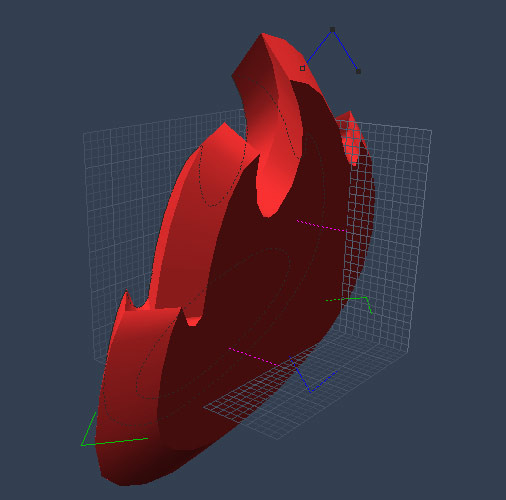
file_368620.jpg

To get things started I used the Photoshop Magic Wand to select this Angelfire logo; then I created a path, and exported the path as an Logo.AI.  Then, in Carrara, I Insert > Spline Object and clicked File > Import > Logo.AI.

My first concern is that the hole in the middle of the logo is actually going to need to be treated as an other, Boolean like, object?  If so, how can I keep applying the changes I make, from the first object, to the second object?

Angelouscuitry ( ) posted Sun, 11 February 2007 at 12:29 AM

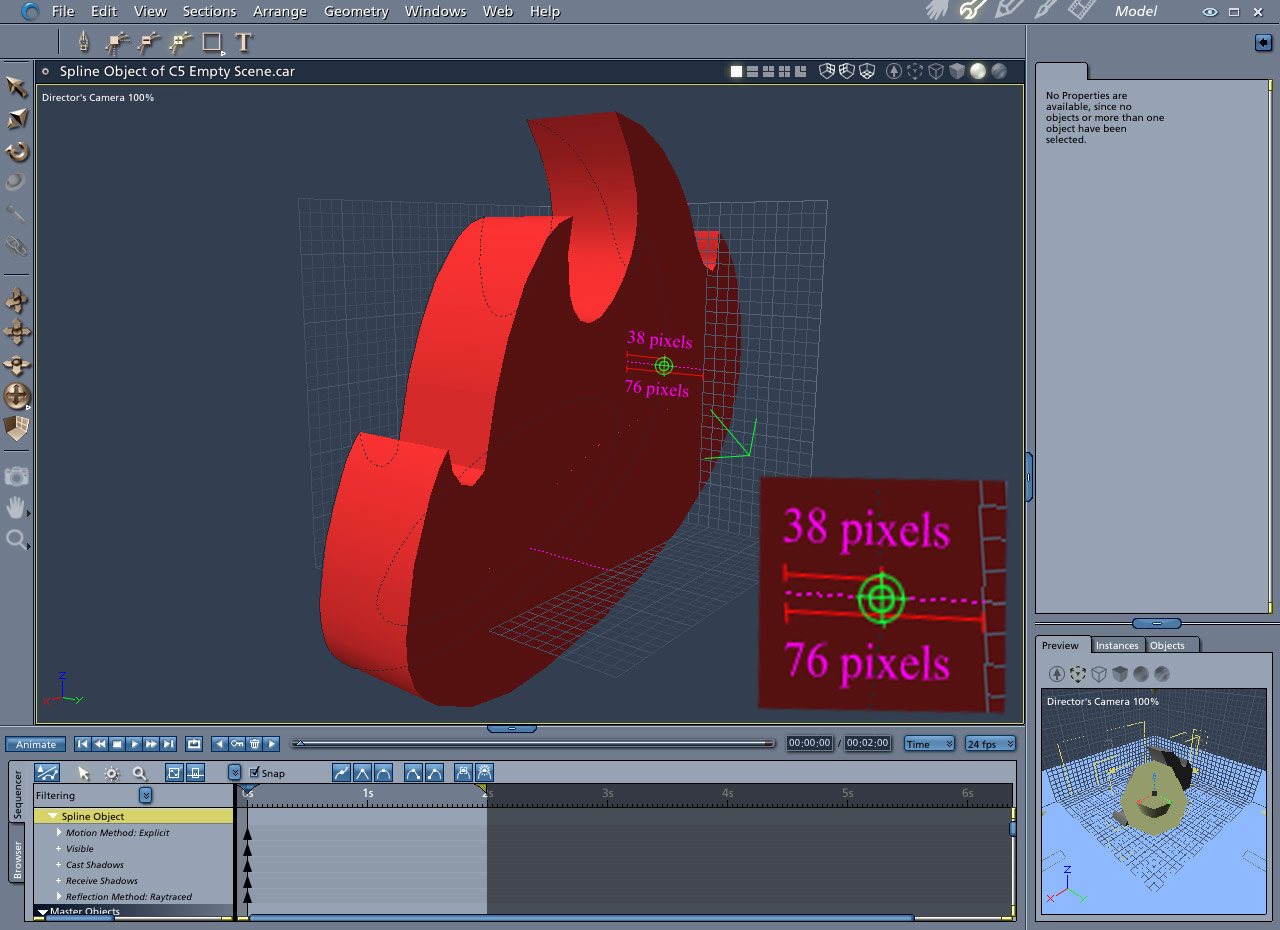
file_368621.jpg

My next concern is really interesting; and involves a concept I should easily like to remember!  I see the Add Point tool, and would like to add a point halfway between the two existing points, and halfway down the line?  I could do it by hand, but would like to eliminate guess.  Similar to being interested in adding one new point, I should like to know how to add multiple points evenly.  Lets's say I'd like to 3 more points, so that there is a point at each 1/4 distance of the line?


Angelouscuitry ( ) posted Sun, 11 February 2007 at 12:30 AM

file_368622.jpg

WIth the AI imported I I clicked Geometry > Extrusion Envelope > Symetrical.  Then I added some points with the Add Point tool; and had at them with the Convert Point tool.   I started to get an idea of what I'm looking for, but then I noticed keeping both sides of the object similar is difficult; any idea how this is done, simply?


Angelouscuitry ( ) posted Sun, 11 February 2007 at 12:30 AM

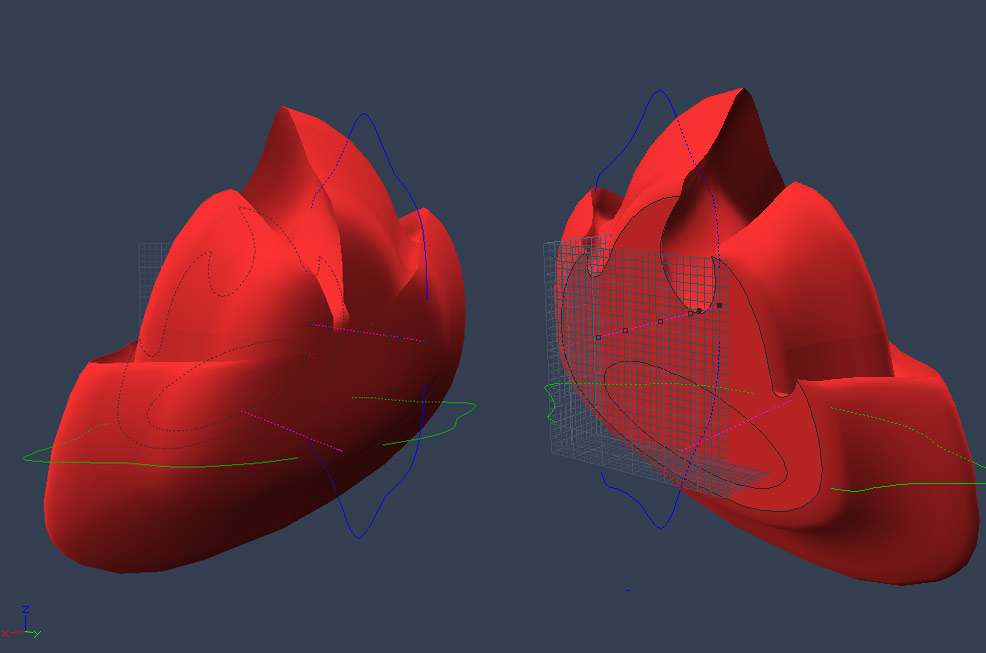
file_368623.jpg

Without getting too complicated I can come fairly close to the shape I'm looking for.  But, now that I have added extra points, how could I scale this spline alonf the y axis.  Before I added the extra vertexes I could just click and drag on the last vertex, to the right of the Blue or Purple guides; but now hat the others are there, dragging only effects the area bewteen the last vertex and the one before it, rather than from the first to the last vertex?  I tried selecting all of the vertexs, along a line, but that did'nt work.  I also tried to manipulate selected vertexs with the Scale tool, to no end.


sparrownightmare ( ) posted Sun, 11 February 2007 at 11:45 AM

Well the hole should be the simplest to deal with.  After you have all of it's points set the way you want them, just ctrl-a to select all and then use the combine as compound  to cut it out of the fire.  If you don't like the way it imported, use the remove point tool to remove it one point at a time and rebuild it manually before you combine it.

Quote - To get things started I used the Photoshop Magic Wand to select this Angelfire logo; then I created a path, and exported the path as an Logo.AI.  Then, in Carrara, I Insert > Spline Object and clicked File > Import > Logo.AI.

My first concern is that the hole in the middle of the logo is actually going to need to be treated as an other, Boolean like, object?  If so, how can I keep applying the changes I make, from the first object, to the second object?

Angelouscuitry ( ) posted Sun, 11 February 2007 at 1:35 PM

Super, sparrow, thank you!  The Combine as Compound command is right there in the Arrange Menu!

The next big thing, holding me up, is how to Add a Point in the middle of two existing points.  I hope we wo'nt always need to Eyeball this, but I do'nt see any way to avoid doing it by hand?


Privacy Notice

This site uses cookies to deliver the best experience. Our own cookies make user accounts and other features possible. Third-party cookies are used to display relevant ads and to analyze how Renderosity is used. By using our site, you acknowledge that you have read and understood our Terms of Service, including our Cookie Policy and our Privacy Policy.