
-
Marketplace
- Free Stuff
-
Galleries
-
Community
Forums General
- News
- Deals
- Poser
- Contact
Renderosity Forums / Poser - OFFICIAL
Welcome to the Poser - OFFICIAL Forum
Forum Moderators: RedPhantom Forum Coordinators: Anim8dtoon
Poser - OFFICIAL F.A.Q (Last Updated: 2026 Jun 26 3:49 pm)

Subject: How do I create .mc6 files?

Report Post

It's not a conversion. The .mc6 file is a material collection for a figure or prop that transcends all the material zones. Add your texture to the figure/prop in the Material Room and click on the + sign at the bottom of the Library window. The pop-up window will allow you to select what file you want to create.

in the material room, after you've assigned your textures .. Open the library window go to the material tab,
1 Click a folder you want to save the material to, then click the + button.
It will give a popup that asks single material, or collection.
Give a name in the Set Name box.
2 Select collection and click the choose materials button
It will pop up a window to select the materials.
3 Select the materials you want to save.
4 Click OK.
5 Click Ok (again).
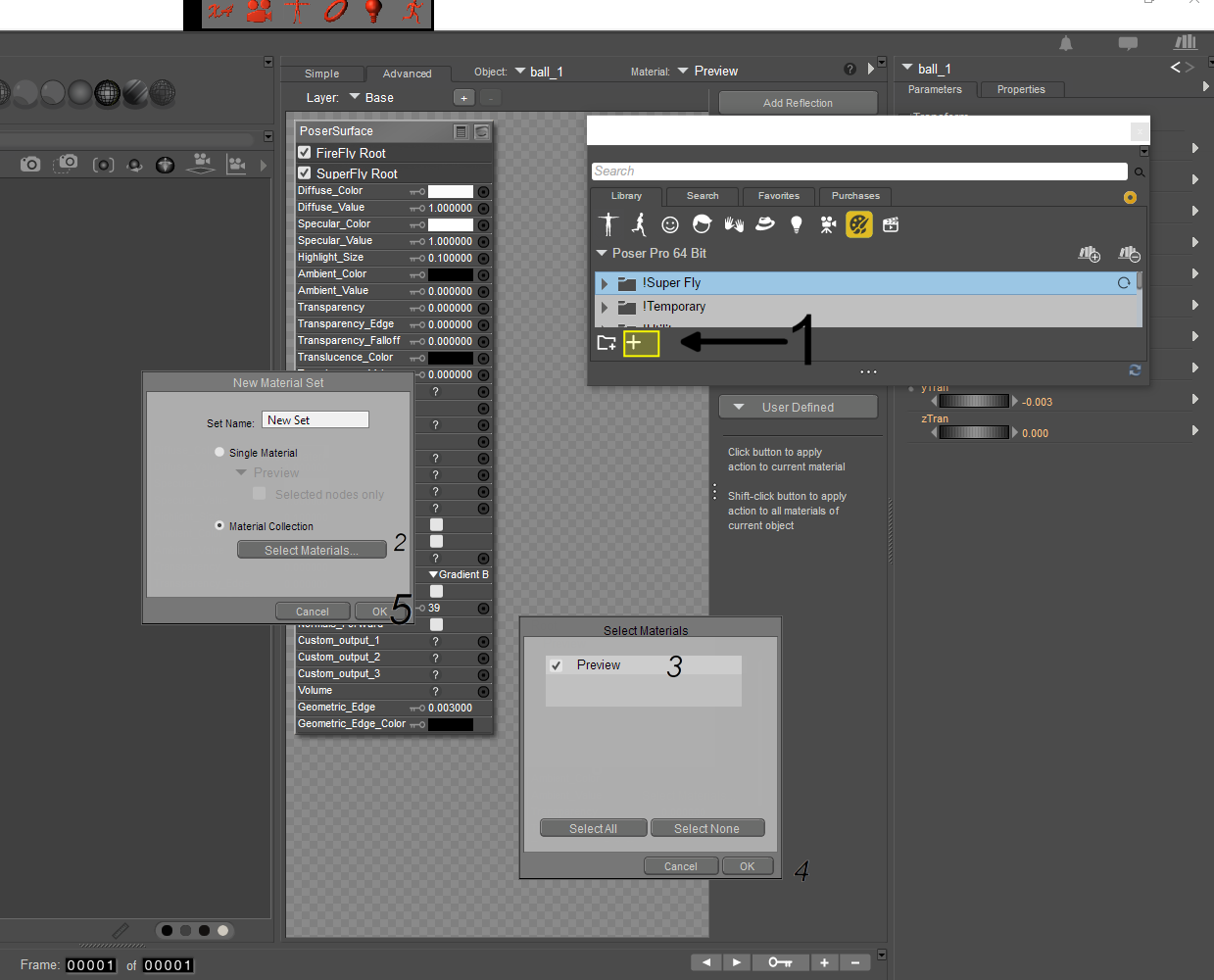
If you have file compression turned on in your preferences, it will save as (name).mcz otherwise it will be (name).mc6
--------------------------------------------------------------------------------
Consider me insane if you wish, but is your reality any better?
-
- Renderosity Page
- Renderosity Communities
- Blender 3D
- iClone
- Poser Users
- Poser Software
- Become an Affiliate
- Memorials
-
About
- About Us
- Contact Us
- Team
- Policies
- Terms of Service
- Copyright Policy
- Refund Policy
- Licenses
- Standard License
- Extended License

Privacy Notice
This site uses cookies to deliver the best experience. Our own cookies make user accounts and other features possible. Third-party cookies are used to display relevant ads and to analyze how Renderosity is used. By using our site, you acknowledge that you have read and understood our Terms of Service, including our Cookie Policy and our Privacy Policy.
Hi Poser peeps,
I've got a question for you and that is, how do I create .mc6 files to place in the Materials library? I bought a merchant resource and haven't the foggiest idea of how to convert the .jpg or .png textures to .mc6 format. Thanks in advance for your help with this!