
Renderosity Forums / Carrara
Welcome to the Carrara Forum
Forum Coordinators: Kalypso, Anim8dtoon
Carrara F.A.Q (Last Updated: 2026 Sep 09 4:39 am)
Visit the Carrara Gallery here.

Subject: Weekend Project Failure (Realistic Sky Issues)


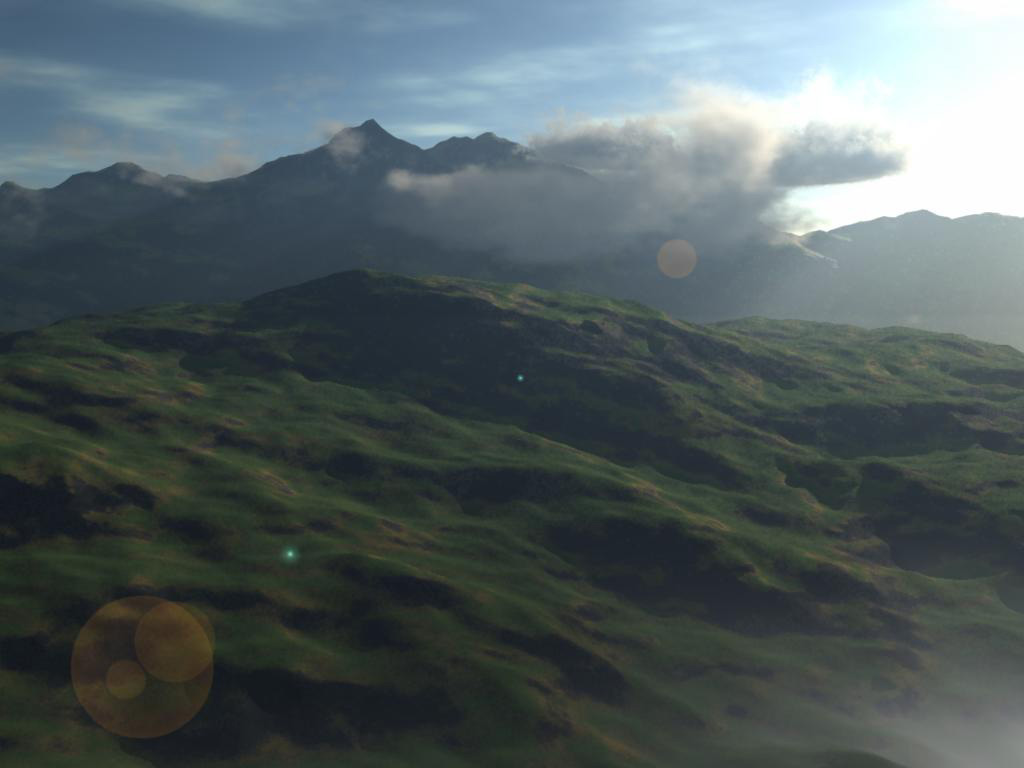
Every 3d package I use that has atmospherics has a sweet spot where the effects work better than others. In Carrara, the realistic sky presets are most effective at Large scene scales. And even then I amend the scene ratio from 1=1 to 1=5.
The attached image has no special tricks or extra lights. The light rays are enabled in the Realistic Sky settings and there is only one light in the scene - a distant light that has been designated as Sunlight. So, both the mountains and clouds are casting shadows through the atmosphere. Fog and Haze have been enabled.
The spot light trick (to replace the sun and cast light rays through vegitation) is one I only use at smaller scene scales because it takes a little fussing to get it right.
Carra does have the cool ability to amend the realistic sky by adding a gradient to the Background function in the scene settings. This is done to create a better horizon/sky transition. However, one fo the best uses for this trick is adding a HDRI map to pop reflections. Carrara uses an additive process with the Background so function so it' super easy to add some photo realistic elements to the scene while maintaining some customizable features of the Sky editor too.
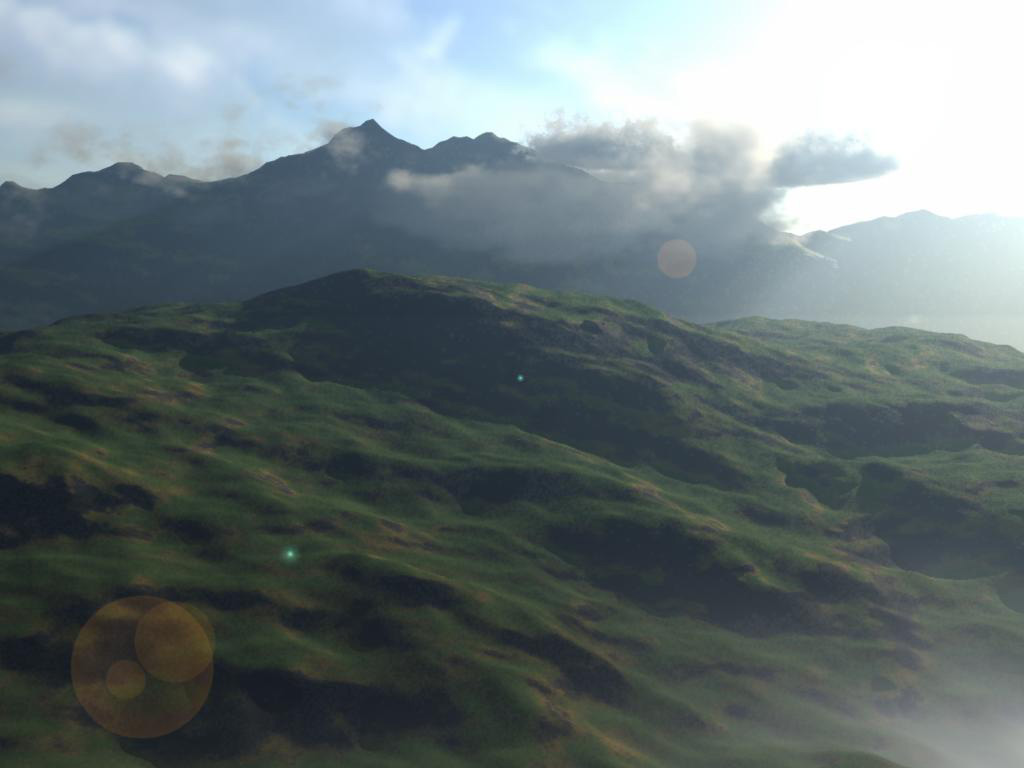
Ok, a few comments.
1.) Thanks for cranking out some examples. I appreciate it.
2.) You've generated a few of these quick examples in the forum in the last few weeks. I'm just going to have to try it and see how hard/easy it really is. I think it's sort of a matter of practice and also having a few premade textures on hand.
I've been doing some thinking about how to get planets up in the sky in an easy manner. I've got some good ideas which I'll try. If it turns out to be straight forward, I'll make it a tutorial.
I'm thinking that you could render an image of a planet with just one light in a completely black scene.
Then, take a single plane, do not allow it to accept light, and put the rendered planet in the glow channel with a mixer to control brightness.
I'll try that and see if it works. Depending on how it plays out, I think you can set it up so that it won't show stars through either (we'll see). That would take a little bit of work in the transparency channel. I just don't know until I try it.
If it works though, You could essentially make a set of splats that you could put in the sky, have them point at the camera, release the behavior and then rotate them to point at the light source.
Ya, lots of steps so a tutorial is warrented (if it works).
Depending on my energy level, I could even build a little kit and put it up in the free stuff.
-Kix

Privacy Notice
This site uses cookies to deliver the best experience. Our own cookies make user accounts and other features possible. Third-party cookies are used to display relevant ads and to analyze how Renderosity is used. By using our site, you acknowledge that you have read and understood our Terms of Service, including our Cookie Policy and our Privacy Policy.
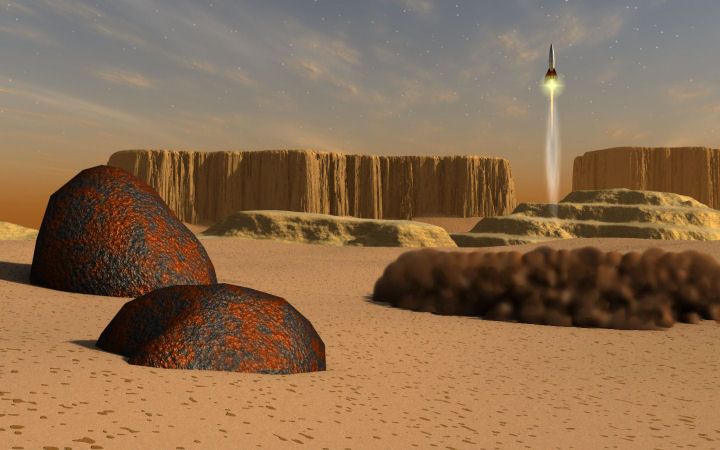
This is one of a series of threads that I'm posting. I worked on an image all weekend and encountered several problems with it. In fact, I posted it in my gallery and the first comment I got on it fully confirmed my opinion that it sucked so I took it down. I thought it would have some value to write what happened and post it for two reasons.1.) My experience might be interesting for some to see what kinds of things happened during the development of the image.
2.) I would like feedback on what I could try to get it better.
I think these issues are big enough to have a separate thread for each so I have broken this up into separate threads with images and text to support each issue.
I am happy for any and all feedback!
Thanks!
Sky
What worked.
As a general rule, many people will say that the realistic sky editor falls short. I will have to agree to a certain extent. However, I actually like the clouds that came out in this rendition quite a bit so I'm not going to complain much about the clouds (I like them). However, I want to make it clear that the realistic sky editor can't do what I'll call "real" clouds. For real clouds, you have to drop in a wagon full of volumetric clouds, arrange and futz with them until you get something that looks natural (lots of work, pain in the ....). For what I'll call hi level atmospheric interference/hazy/light clouds, the realistic sky editor can do a good job which is what I wanted this time around (cool). I still had to dork with it but I like this particular result (maybe even love it).
What didn't Work.
The haze/fog just would not do what I wanted it to do. In fact, I can't get it to do what I want ever. I want objects in the far distance to look hazy and more washed out. Far far far away objects I want to even have a uniform color and have just an outline. I can't get that to work.
What I tried.
I tried setting the "1 mi = x mi" settings to pump up the distance issues. It would not give me what I wanted. I tried fussing with the haze setting quite a bit. It seemed that it would wash everything out evenly rather than far things more than closer things. I also fussed with the fog and it didn't work either.
What I learned.
If you want that nice Vue/terragen look in terms of nice distance haze, I draw two conclusions. 1.) C is not well suited for it or 2.) You need to put terrains in that actually are miles in scale and miles distant. This miles thingy doesn't work well because after a certain point, meshes stop being rendered in the distance and you can't see what you're building (argh). At the moment, I'm inclined to the first result being the real issue.
Also, I wrestled with using a primivol fog object. That actually seemed to help some but it interfered with other primivol thingamathings I was attempting to use so, I couldn't use it after all (poop!). However, if I had no other primivol thingies in my scene, I think a primivol fog object is just the thing (note to self).
Bottom line, I have learned that if you really really want a realistic type of atmosphere, C is clumsy about it. There's actually a checklist of things you have to turn on to make it really really work and if you don't know that stuff, it sucks.
1.) You have to turn on the realistic sky option in the scene settings.
2.) Then you have to put in a distant lite and set it either to a sunlight or a moon light to really get a light that connects to the sky (ok but it's an extra step you have to take and if you don't know that, then you're mad about it). You don't really need it but if you want the light to line up with what's going on, then that's how you do it. Also, on a side note, you have to set the radius of that light to BIG in order for the soft shadows to work (just another thing to know from outer space).
3.) Then if you want sunbeams, you actually need to put that crazy light in your scene where it will line up with the sun and the camera (another step you just need to know from nowhere).
4.) You need to put in a backdrop. If it's day, then you need to turn on the gradient in the backdrop to make the sky really work. You also have to futz with it if you want it to change from hi noon to night (pain). MAJOR KUDOS to Digital Carvers Guild for the starbright plug-in (DCG is my savior!). There are still a few things about this plug-in I would like modified but I'm still super happy about it. I understand that providing the user control over the backdrop is actually a really good idea but it would be nice if the sky editor didn't require you to fuss with the backdrop so much to get things to look good.
5.) What is up with the moon and the backdrop? I love the fact that if I want the moon to show up, click and poof, moon! Yea! It looks good, it has phases, I can rotate it, blah blah blah blah lots of good stuff here. And then, you turn on the stars in the backdrop and what do you know, but you get stars in front of the moon (what in the?). That means that if I want to put in the moon and a starfield in the backdrop, that really great moon gets dorked.
6.) And while I'm at it, I know there's a whole raft of people out there that would like to drop in other partially lit planets in the sky as well. Can somebody please write a simple plug-in so that we can turn on all kinds of planets in the sky with phases and stuff and make it easy and look good? I know it's not easy when I think of how I would try it but there's a lot of smart people out there. I know we can do it if we really work hard. I need to write Eric!
-Kix