
Renderosity Forums / Poser - OFFICIAL
Welcome to the Poser - OFFICIAL Forum
Forum Moderators: RedPhantom Forum Coordinators: Anim8dtoon
Poser - OFFICIAL F.A.Q (Last Updated: 2026 May 23 8:20 pm)

Subject: Where do I find "Joint Parameters" for a figure?


No. "Joint Parameters". I need to do something with "Spherical Fall Off"
"It is good to see ourselves as
others see us. Try as we may, we are never
able to know ourselves fully as we
are, especially the evil side of us.
This we can do only if we are not
angry with our critics but will take in good
heart whatever they might have to
say." - Ghandi
Oh. Isn't it in the joint editor, when you select the bend tab? BTW, i would be too interested by any advices you'd get as i'm kinda "stuck" with that...

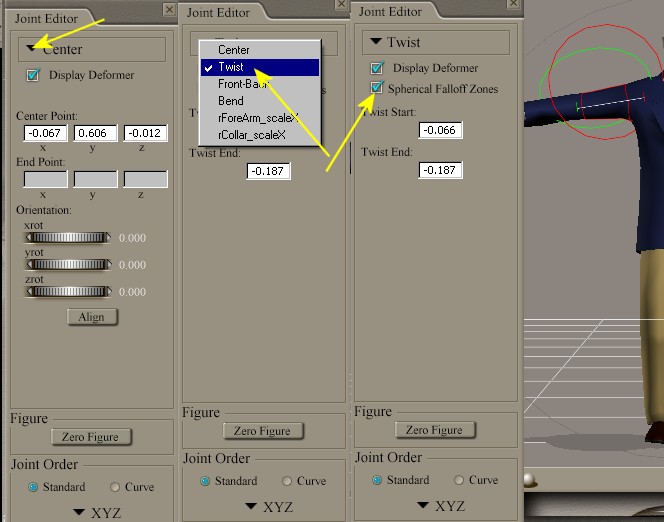
You can click the dropdown box where it says "Center" and choose the rotation values, like Bend, Side to side, Twist. (whatever the dial is named), tick the "spherical Falloff Zones" box to show them, Green is Inner Sphere, (everything inside this area will be affected) - Red is outer Sphere, (this will be the falloff area.)
When the Zones are visible, you can select them as you would any ordinary prop and move, scale, rotate them using the normal methods.
Hey! His nose is dry! ... Someone should lick it, just in case. - Diego

Privacy Notice
This site uses cookies to deliver the best experience. Our own cookies make user accounts and other features possible. Third-party cookies are used to display relevant ads and to analyze how Renderosity is used. By using our site, you acknowledge that you have read and understood our Terms of Service, including our Cookie Policy and our Privacy Policy.
Where do I find "Joint Parameters" for a figure?
"It is good to see ourselves as others see us. Try as we may, we are never
able to know ourselves fully as we are, especially the evil side of us.
This we can do only if we are not angry with our critics but will take in good
heart whatever they might have to say." - Ghandi