Renderosity Forums / Blender
Welcome to the Blender Forum
Forum Moderators: Lobo3433 Forum Coordinators: bwsupport
Blender F.A.Q (Last Updated: 2026 Apr 20 6:45 am)
Welcome to the Blender Forum!
Your place to learn about Blender, ask questions,
exchange ideas, and interact with the other Blender users!
Gallery | Freestuff | Tutorials
Visit the Renderosity MarketPlace. Your source for digital art content!


Subject: Smooth Stroke


Not totally familiar with how to use the smooth stroke option since sculpting is is still out of my knowledge base found this short demo on using it for sculpting veins on a leaf that might give you some insight https://www.youtube.com/watch?v=HAhQT6_hUPE
Lobo3433
Blender Maya & 3D Forum Moderator

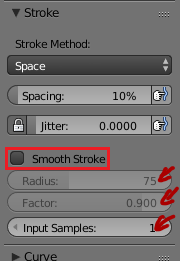
Smooth stroke works with all brushes so far as I recall. Best way to describe it is, when you're trying to draw a straight line [without a ruler/etc] you sometimes get wobbles/shakiness in your stroke, smooth stroke will attempt to ignore these wobbles, using the sample rate, to effectively draw a straight line from one sample point to the next [or interpret a curved line from three or more sample points]. The radius and factor settings determine the tolerance for how much the stroke can deviate and how much its smoothed.
Most digital painting/sculpting software has a feature like this. Its the sort of feature you have to experiment with a bit to get the hang of, as its a "personal feel' kind of thing. My recommendation would be to take a large flat plane that's suitably dense for sculpting, and draw some lines on it while adjusting the settings in Smooth Stroke. Try some fast lines, some slow lines, some curves, etc.
The down side to smooth stroke generally, is a bit of lag on your input since the software is no longer taking your input 1:1 and is now actively processing and modifying it. It can give you a steadier line tho, espeically if you're using a mouse, or if you've got a digitizer tablet that runs at a low resolution.
Core i7 950@3.02GHz | 12GB Corsair Dominator Ram@1600mHz | 2GB Geforce GTX 660
Lightwave | Blender | Marmoset | GIMP | Krita

Privacy Notice
This site uses cookies to deliver the best experience. Our own cookies make user accounts and other features possible. Third-party cookies are used to display relevant ads and to analyze how Renderosity is used. By using our site, you acknowledge that you have read and understood our Terms of Service, including our Cookie Policy and our Privacy Policy.
About the Radius and Factor options in the Smooth Stroke how can I use it and what do they do? What brush can I notice it in the mesh? Just below we have the Input Samples option which are samples together to smooth out the stroke of the brush. What brush can I work with?