

🎉 Welcome to the Poser Portal: Your Monthly Hub for All Things Poser! 🎉
We're back for the April Edition of Poser Portal, your backstage pass to the freshest news, hottest deals, latest product launches, and handpicked editor's choices—all centered around the vibrant world of Poser software! Whether you're a seasoned artist, an aspiring creator, or simply a Poser enthusiast, Poser Portal is your go-to source for everything you need to stay ahead in the Poser community.
In this edition, we’re spotlighting standout content from artists pushing the boundaries of 3D creativity. Ready to level up your workflow and get inspired? Let’s dive in!
Editor's Picks
Explore our monthly lineup of curated Poser product selections across a variety of themes!
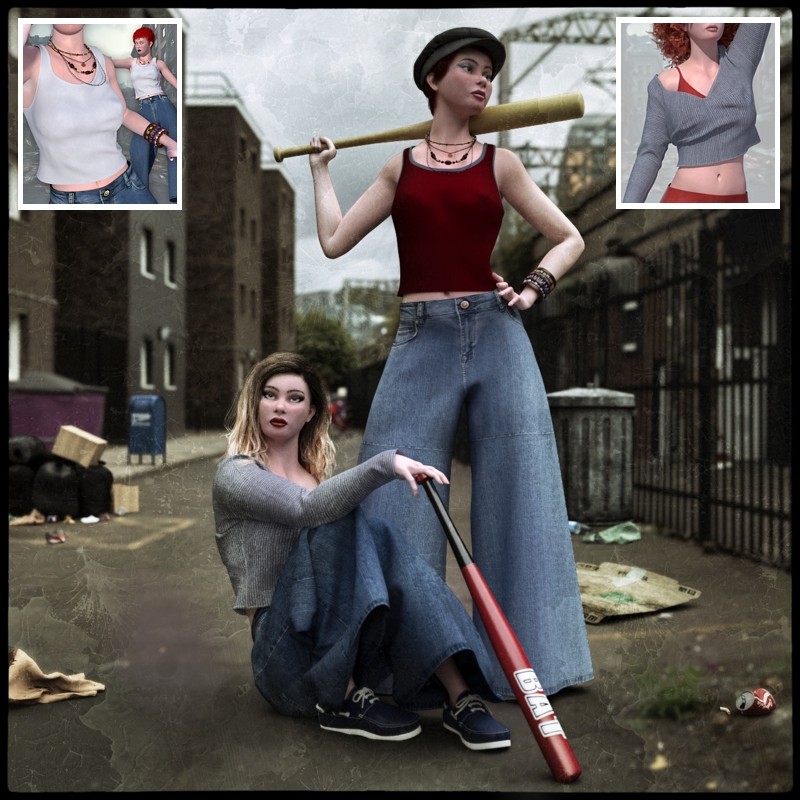
Grunge Set and Grunge Style for La Femme 2 by Tipol


Latest and Greatest
Discover some of Poser's newest releases: Get lost in a beautiful garden after which your brand new Javelin will transport you to colder climates - all the while looking great with a brand-new hairstyle. Get inspired by these new products and tell your Poser stories!


Poser Tip - Who's Afraid of Material Layers?
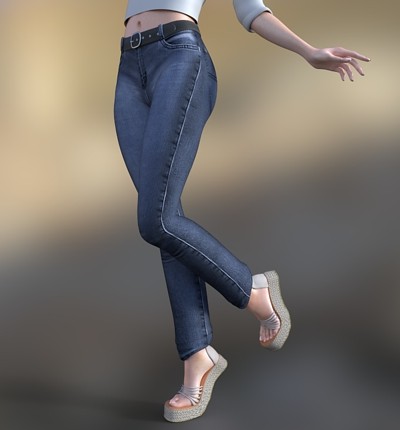
Go From This
To This
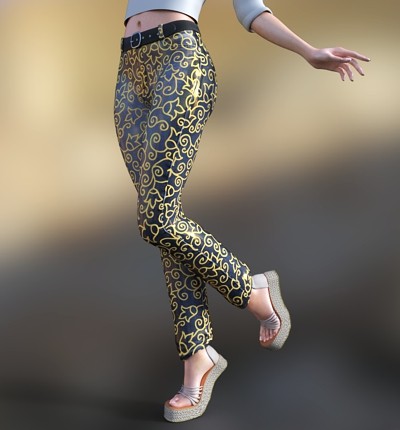
That old pair of jeans is looking pretty boring by now but did you know there's a quick and easy way to jazz it up?
You can transform a plain texture into a cool, vibrant style and without the need to create a whole new texture! Read on to find out how.
You can transform a plain texture into a cool, vibrant style and without the need to create a whole new texture! Read on to find out how.
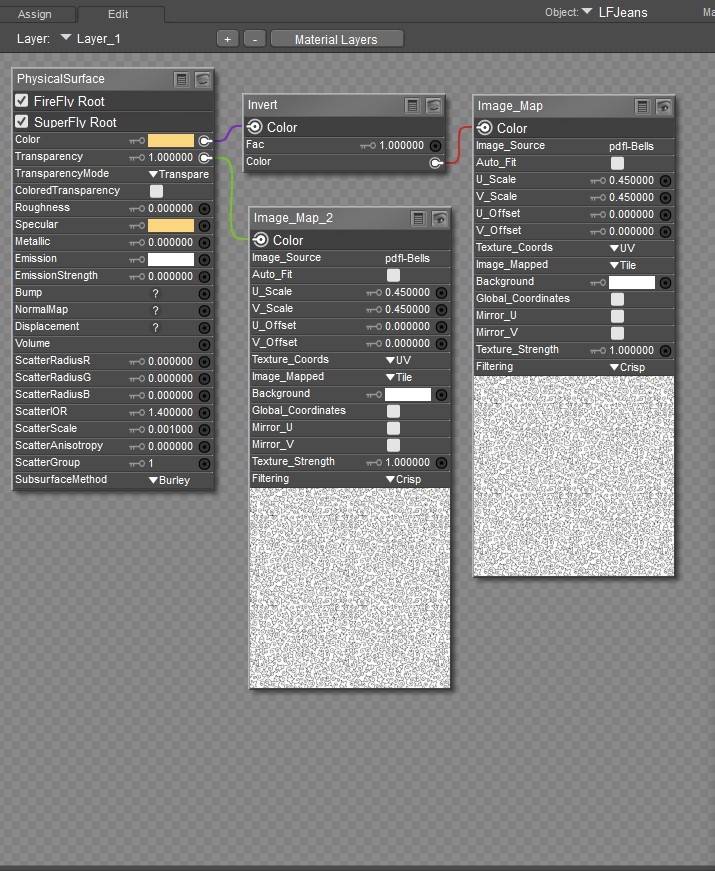
In the material room, once you select your clothing and the material you want to change just add a new layer by clicking "+" button. You can then create and customize your own material to apply.
In the example there is only one layer above the Base layer and it is blended using color and transparency.
In the example there is only one layer above the Base layer and it is blended using color and transparency.
Layer_1 uses a tiled texture. Since the design I wanted on the jeans is in black I used an Invert node and just selected the color I wanted it to be. The same texture is used as a transparency only this time instead of setting the TransparencyMode to Opacity I set it to Transparency so that the white areas would be invisible. It's easy to adapt any kind of black and white tileable image this way. The size of the design is determined by the U and V Scales and should be the same for both the Color and Transparency.
And that's all there is to it! Experiment and have fun customizing your textures!
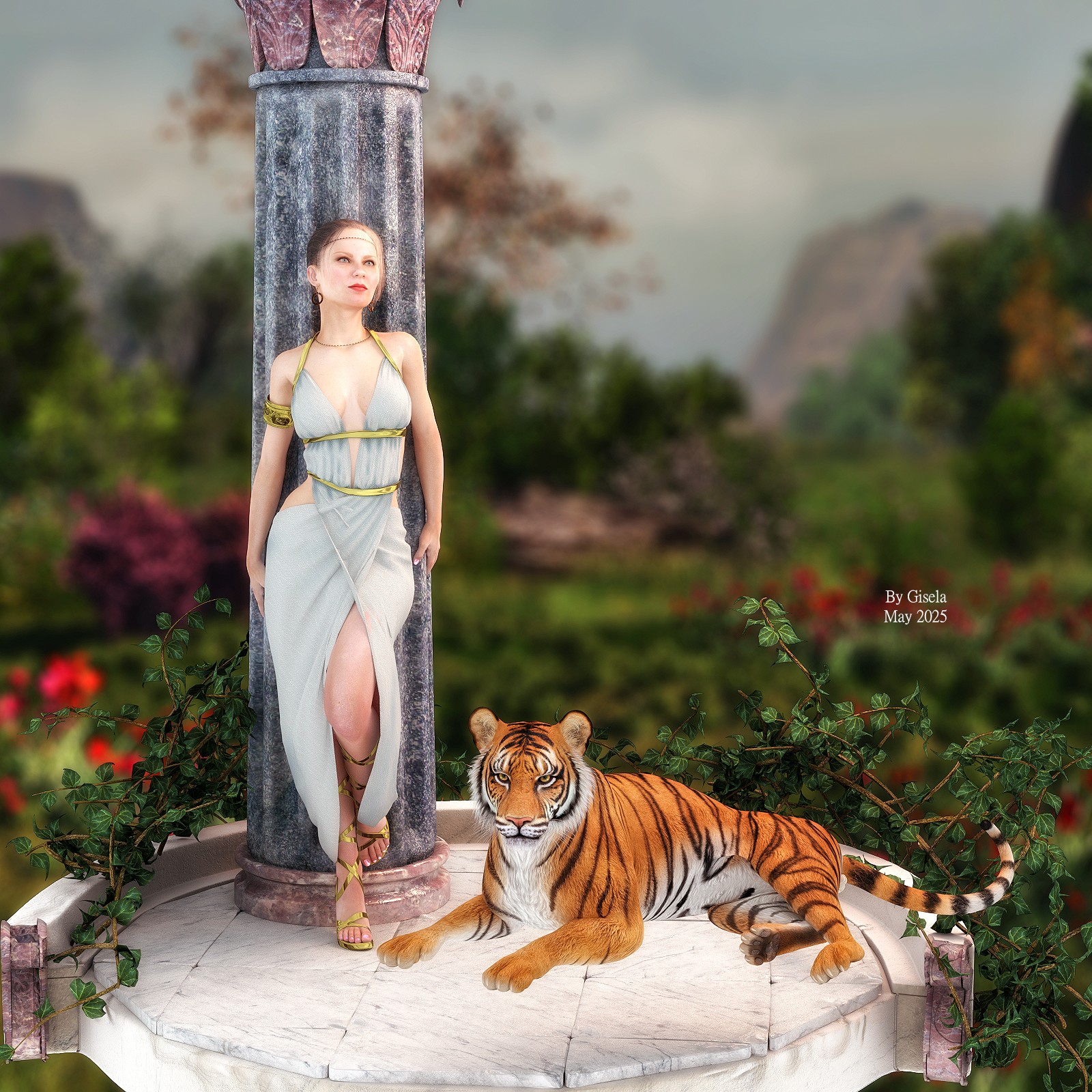
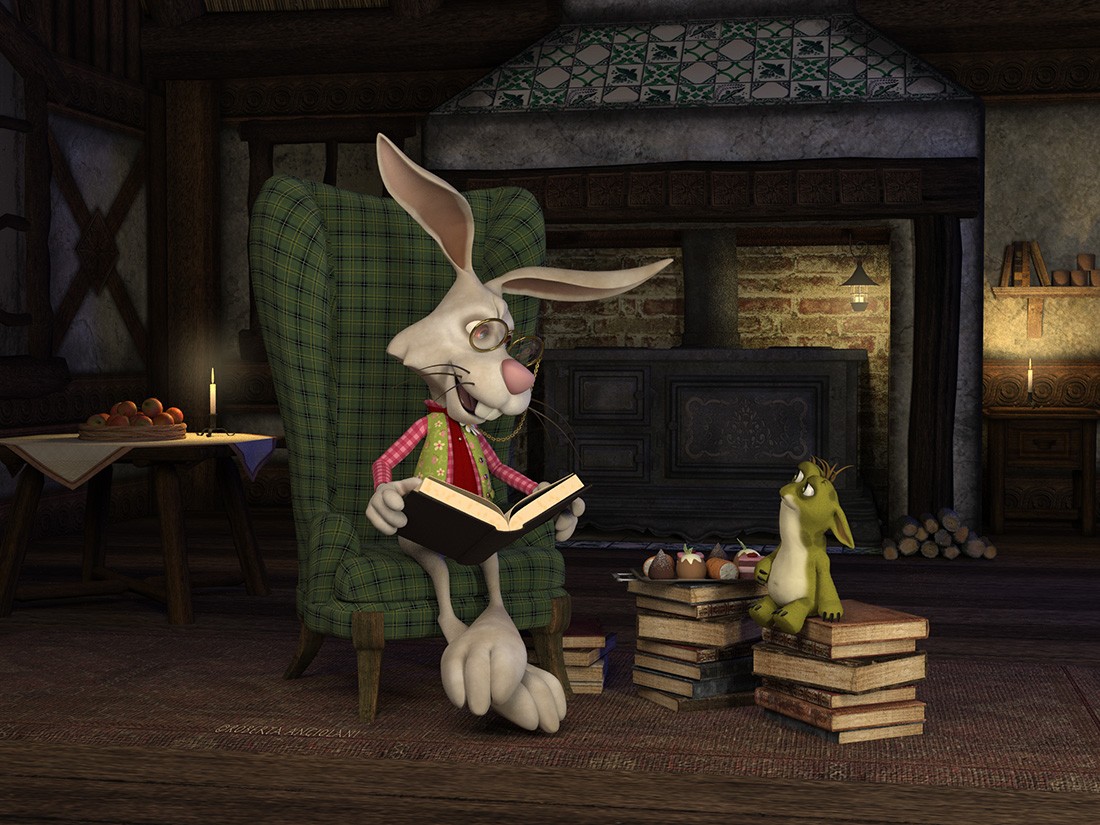
Poser Art Showcase
Featuring stunning creations from our talented artists and highlighting the limitless possibilities of Poser software.





Freebie Fun
Every month, we’re proud to feature members who share their exceptional creations with the community so join us in expressing a big thank-you to the amazing Poser community members who selflessly share their incredible talents through Poser freebies!


As this month’s Poser adventure comes to a close, we hope it sparked your creativity, introduced you to exciting tools, and offered fresh perspectives to elevate your work. We’ll be back next month with more inspiration, updates, and community highlights—until then, keep pushing boundaries and bringing your visions to life!


Comments