Renderosity Forums / Blacksmith3D & Texture Transformer
Welcome to the Blacksmith3D & Texture Transformer Forum
Forum Moderators: tim, msansing
Blacksmith3D & Texture Transformer F.A.Q (Last Updated: 2026 Apr 16 2:12 am)
BLACKSMITH3D Version 8 for Windows (FREE Distribution)
https://www.posersoftware.com/blacksmith3d

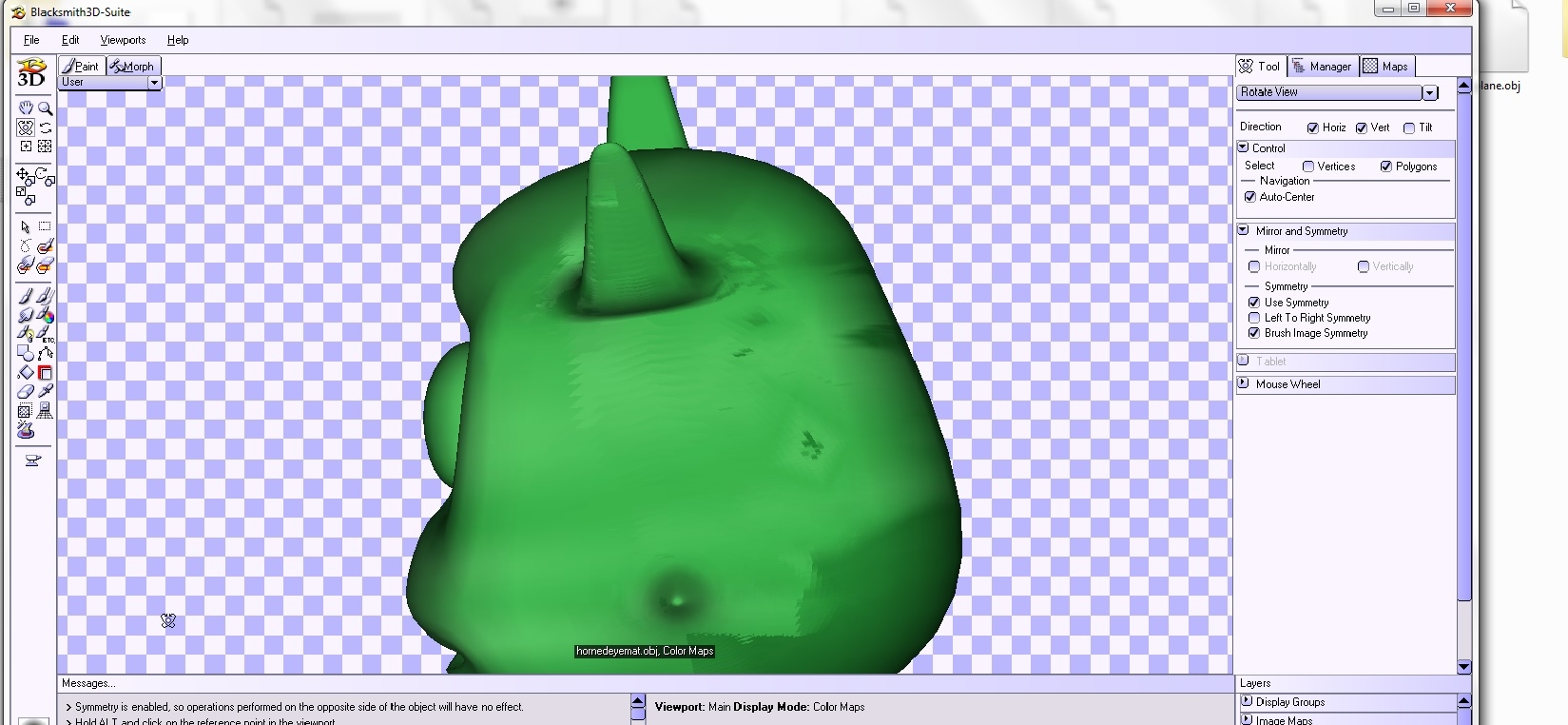
Subject: Painting objects leaves artifacts.


Hello Darkshaolin,
Effectively there are artifacts: Not a UV related issue, It is just because you are painting with Symmetry "on" on a non symmetrical obj. As obj is non-symmetrical, BS3D is lost and try to apply paint. Blacksmith3D is very sensitive with symmetry. If an obj is not symmetrical, you can do the greatest part in symmetrical mode and retouch your issues on the map with symmetry "off".
hope it helps,
Best regards,
Hello Darkshaolin,
Thank you for your feedback, To answer your question, it depends how realistic your cartoon character will looks like. If you want a cartoon like with a soft human skin, then, the best is to use photo references to ease the process. If you are planning a pure cartoon skin, then, it will be easier to paint directly. If you are choosing the second option, then, you can create an image in a photo editor with all your skin tone variation, load it as a reference image to pick colors easily,
Hope it helps,
Best regards,

Hello ImagoPictures,
As i said before, Blacksmith3D is very sensitive on symmetry. If you did create an object with symmetry tolerance greater than what Blacksmith 3D can accept, then, you will get artifacts. You can try to correct this by right click in the object manager on your obj and correct symmetry.
Hope it helps,
Best regards,
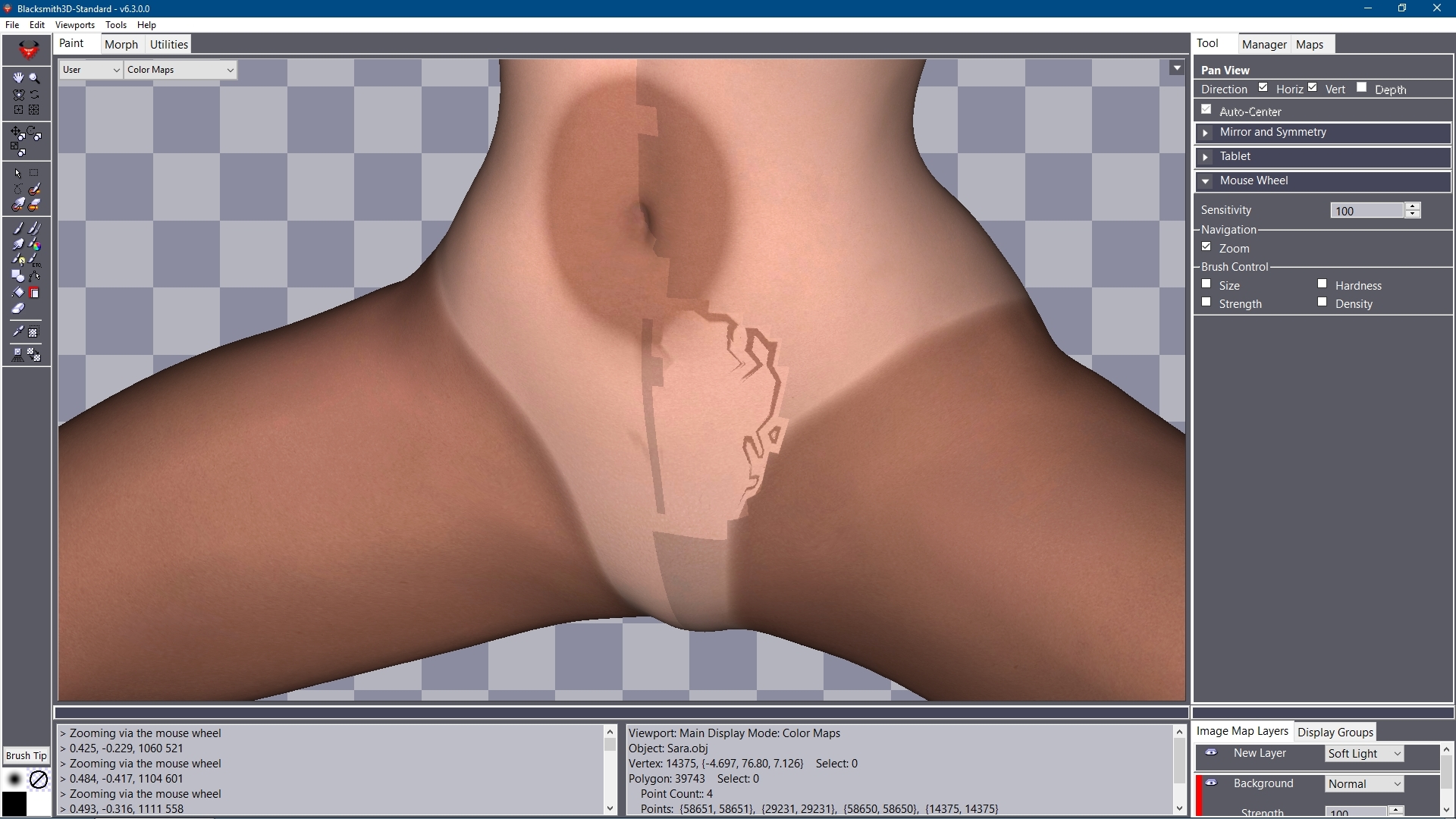 Symmetric char with symmetric pose applied on 0,0,0 position, no geografts attached. I still get those artifacts.
Always. Every time I paint anything.
Symmetric char with symmetric pose applied on 0,0,0 position, no geografts attached. I still get those artifacts.
Always. Every time I paint anything.
Hello ImagoPictures,
G8 is symmetrical, as V4. I think your are using G2 (some of Daz character are not perfectly symmetrical). You should get those artifact on head also and outer left thigh if i remember well. I had this kind of artifact and had to create a special symmetrical obj in lightwave to avoid wasting time.
I noticed that there are 39743 polys. What character are you using?
Best regards
It is Genesis1, I never use any other figure. It's perfectly symmetrical since I make lots of morphs for it, this is sure. The char I was painting here is Genesis1 with some morphs (absolutely symmetrical) applied. As I said nothing more was added, no geograft, no props. Also the pose is perfectly symmetrical (I put the values manually).
Hello ImagoPictures,
I did load Genesis1, here is the result for symmetry:
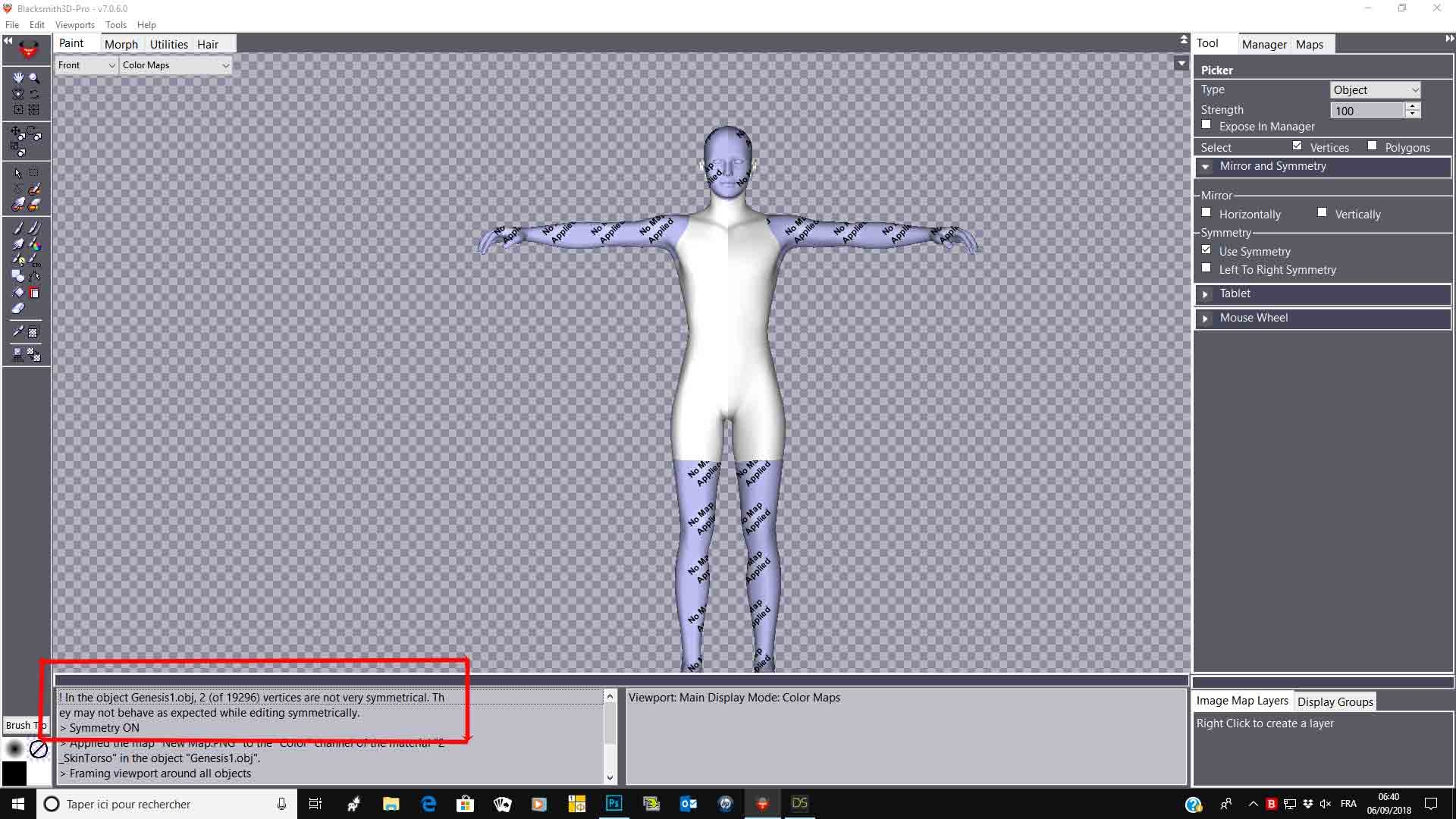
As you can see, some vertices are not symmetrical on base character, causing artifacts. This is the same at subdivision1:
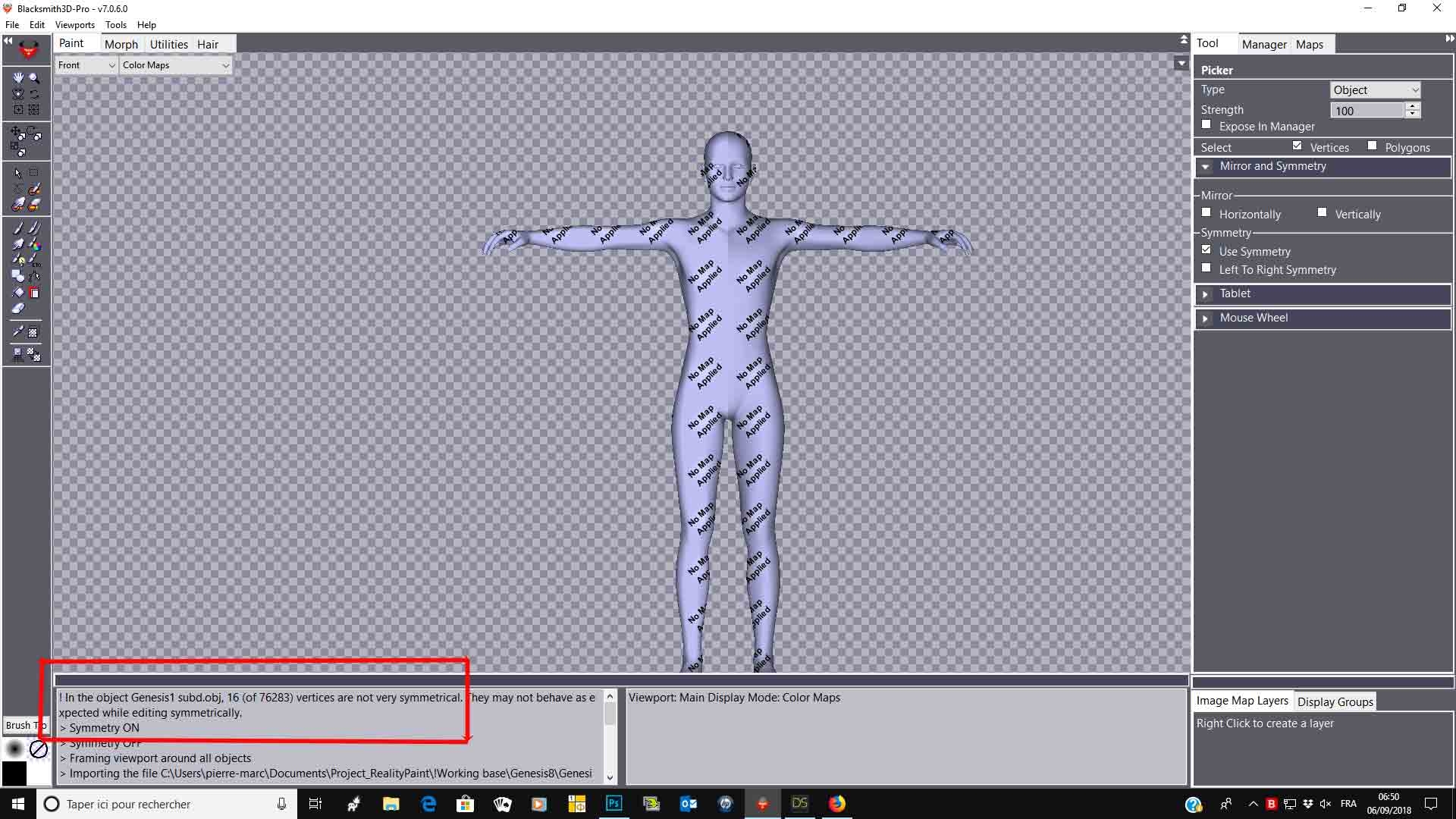
Even if you do perfect symmetrical pose or morphs, you will get some artifacts in some areas.
In V7, you can select your obj in the manager tab, double click on it and at the bottom, set to 3 and apply. Symmetry will be corrected and you will be able to paint without artifacts
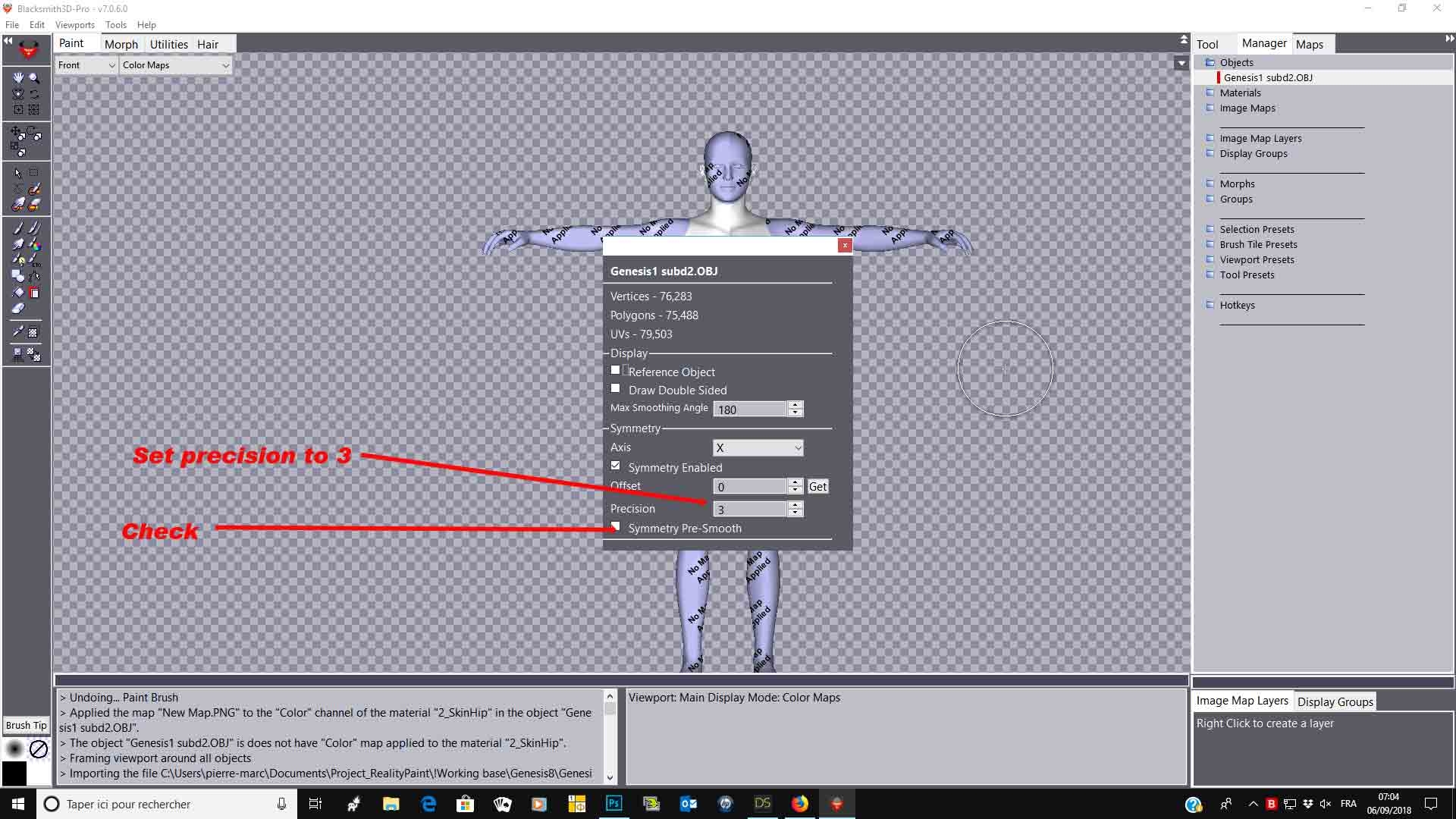
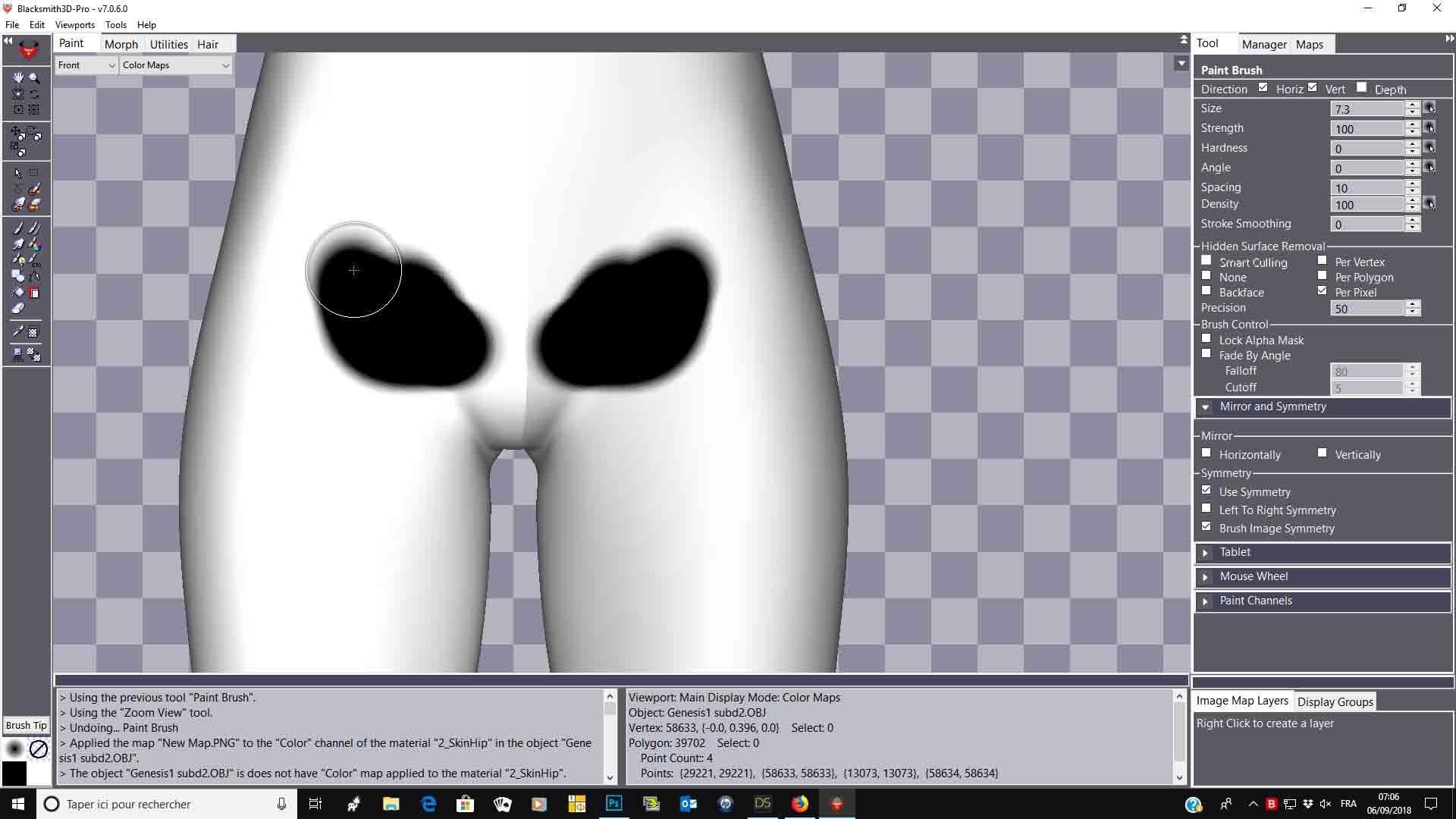
Hope it replies,
Best regards
Hello ImagoPictures,
At first sight, you are working with Blacksmith3D V6. There is a new version (V7) for a year now with Hair strand creator, template, interface enhancement, etc....That's why you cannot see the "template" saving option we discussed in another thread.
Sorry, but what do you mean by "freeze function"?
Best regards,
Yes, I have 6.3. I saw a link to the 6.9 version here but it doesn't work anymore, I can't understand why make such downgrade and force the version to a previous build. By Freeze I mean the option to "lock" part of the textures and paint on the edges of the figure without affecting parts that are behind the surface I'm painting on. The 2D projection is a true pain when painting on complex figures. I can't find any option, tool or other kind of functions on Blacksmith3D to do it.
Hello ImagoPictures,
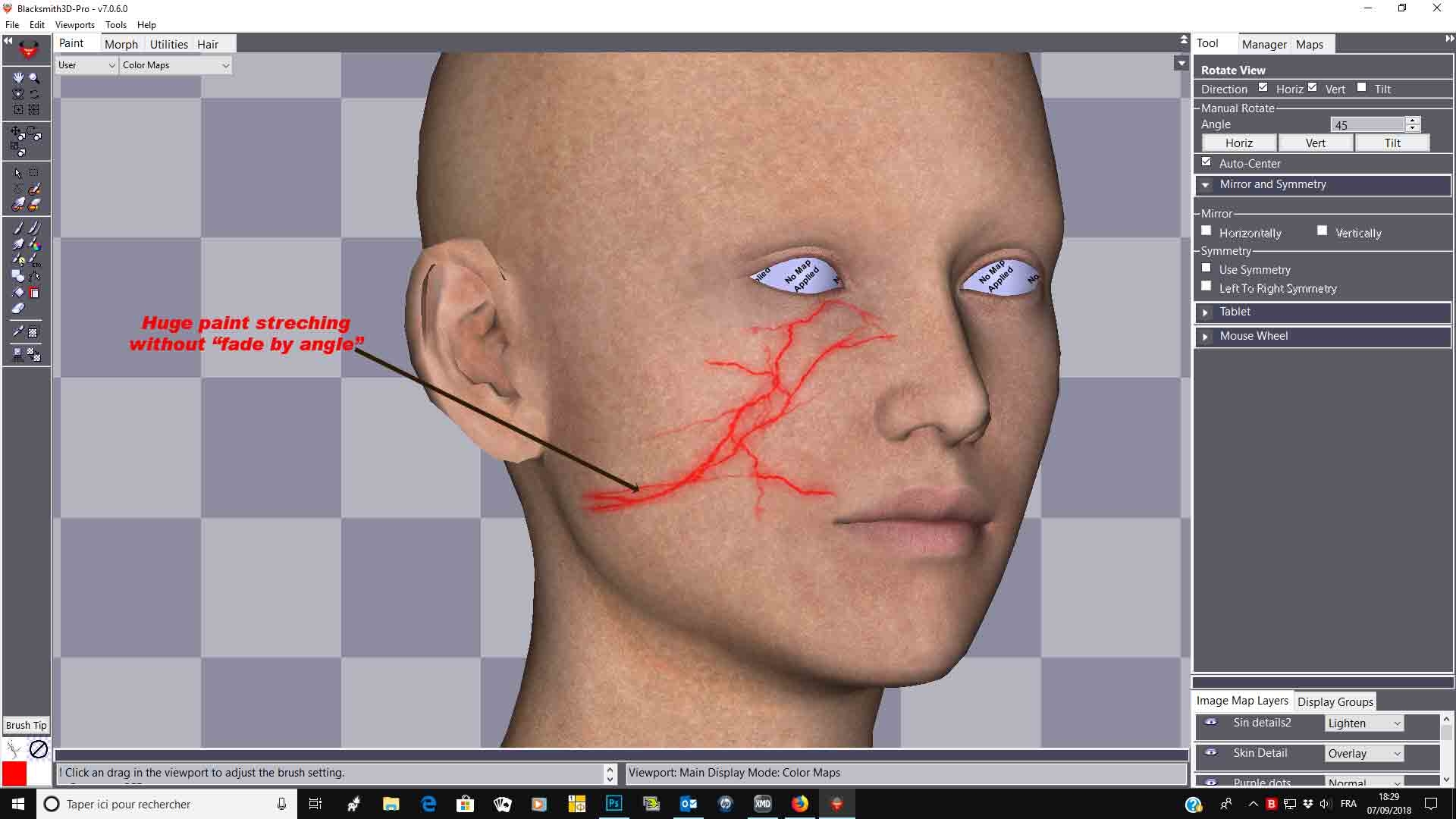
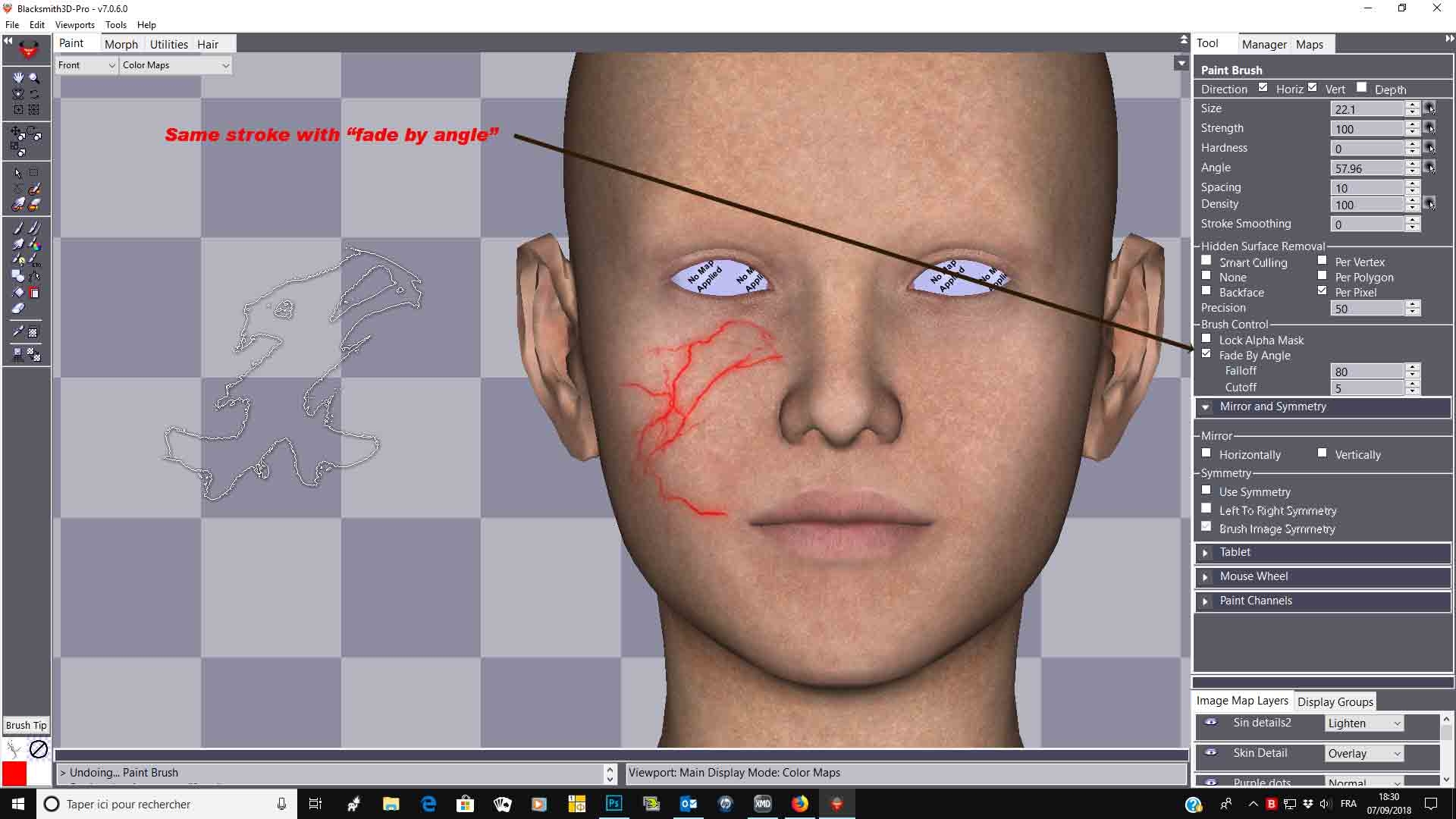
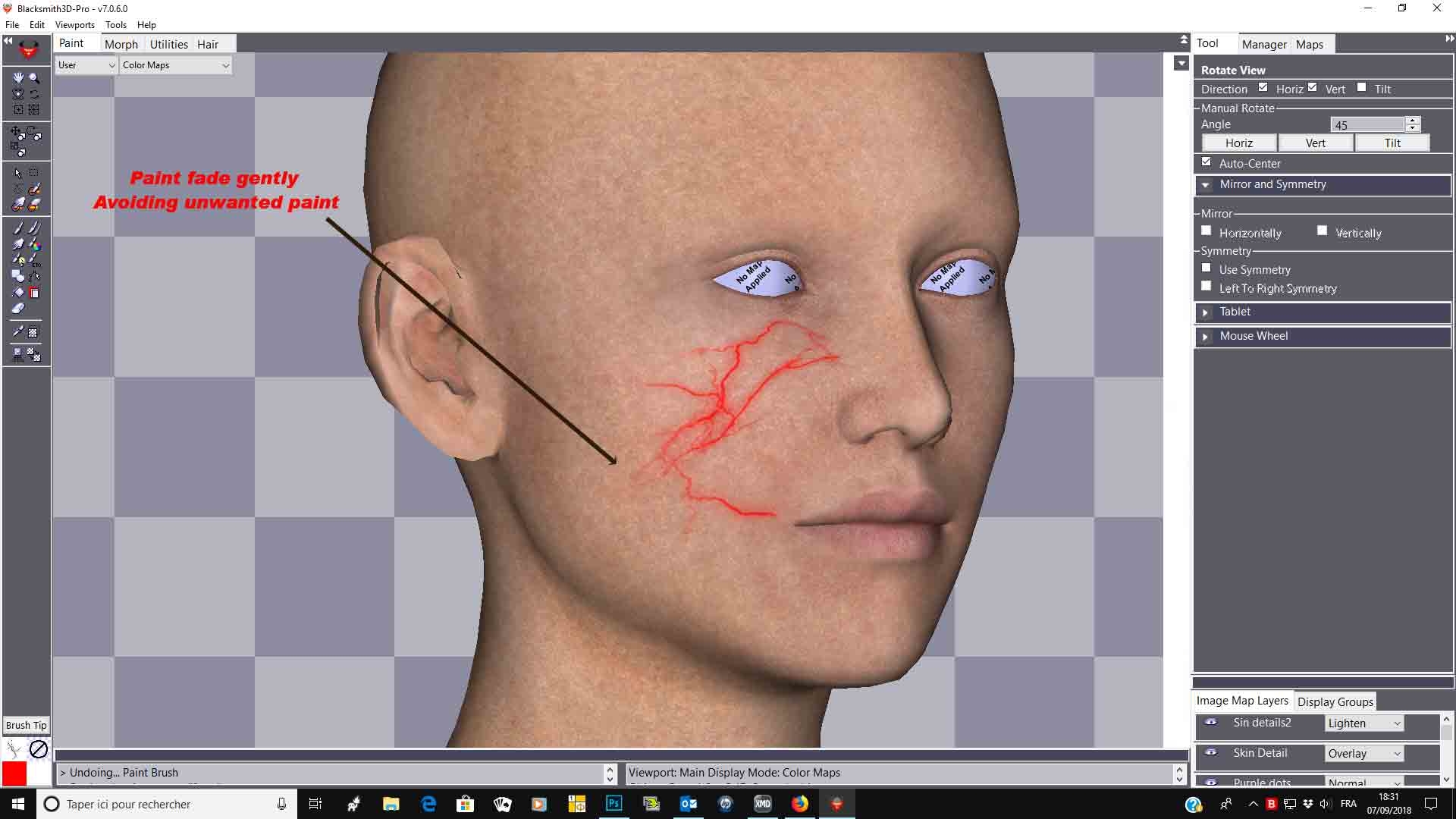
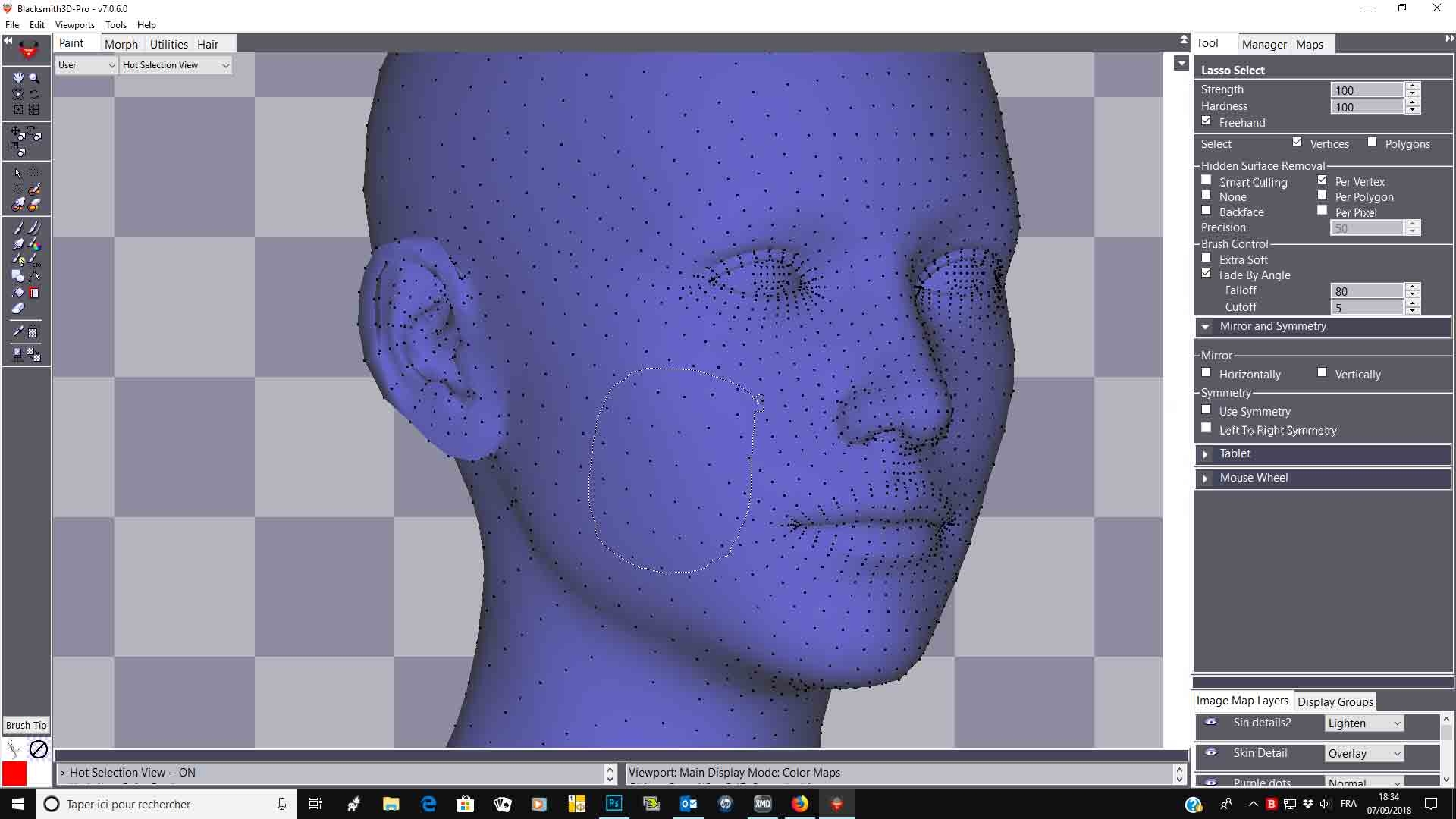
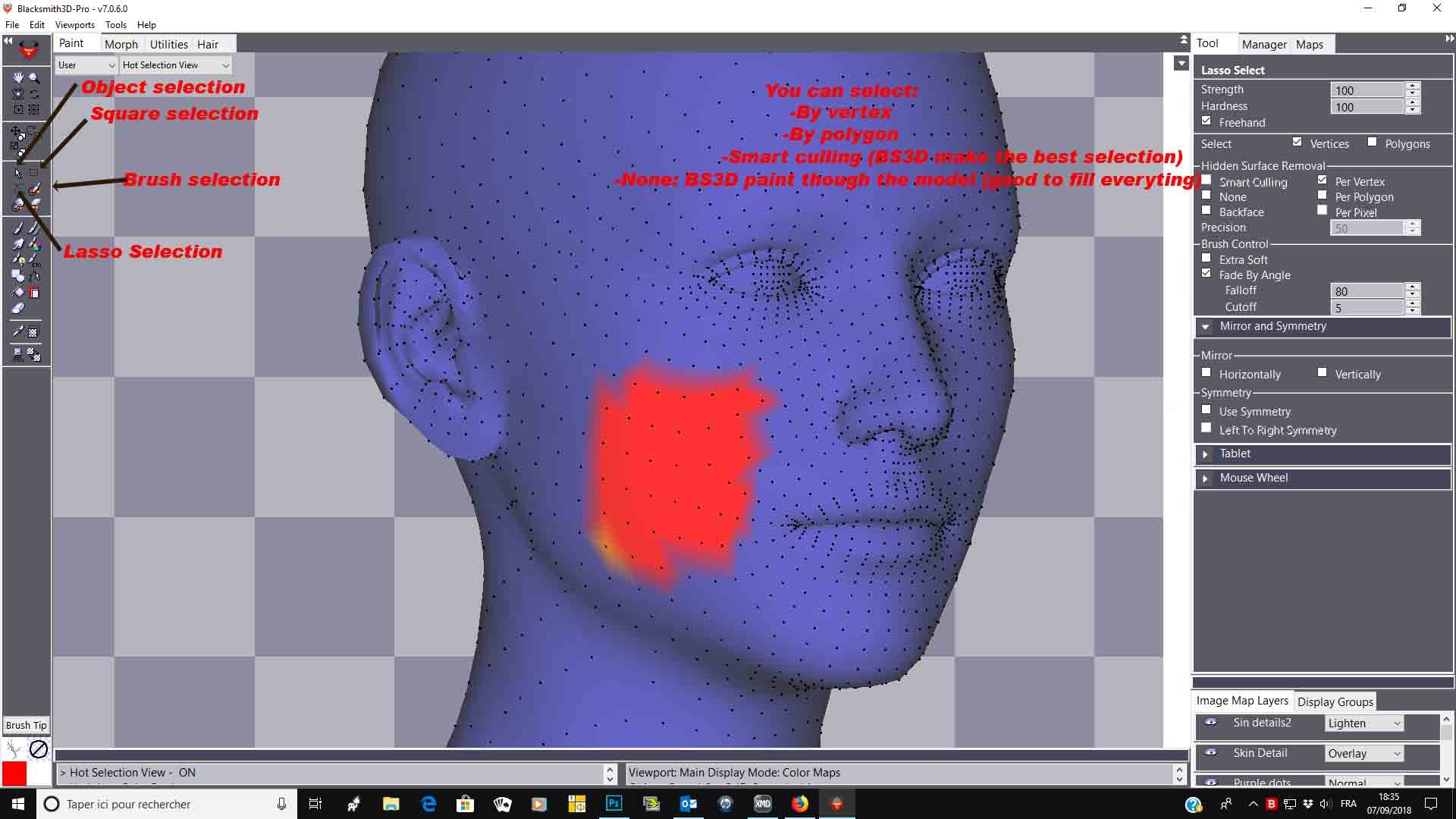
Many ways to do that. On the image above, you can see in the right tab the hidden surface part. Set it to "by pixel" and under, "fade by angle" (use the same settings than the image). You will be able to paint without going through the mesh or projecting paint after a max angle.
If you want to only paint on a specific area, use the selection brush, select the wanted area, press "s" many times to smooth and extend the area and paint. Only the selected area will receive paint.
Hope it replies,
Best regards,
The selection doesn't work... I select only the arm and when I reach the border of the selected part the darkened area gets painted. I tried selecting only a small part in the forehead to test it and I still can paint the full body. Also activating the "fade by angle" the only result is to smear the textures in narrow areas (that stays at most unpainted) and the surfaces under the hand (the leg for example) gets dramatically painted with an awful profile of the hand. I guess it's simply broken beyond any repair. I redownloaded the ZIP file from my order page hoping to fix it, nothing to do.
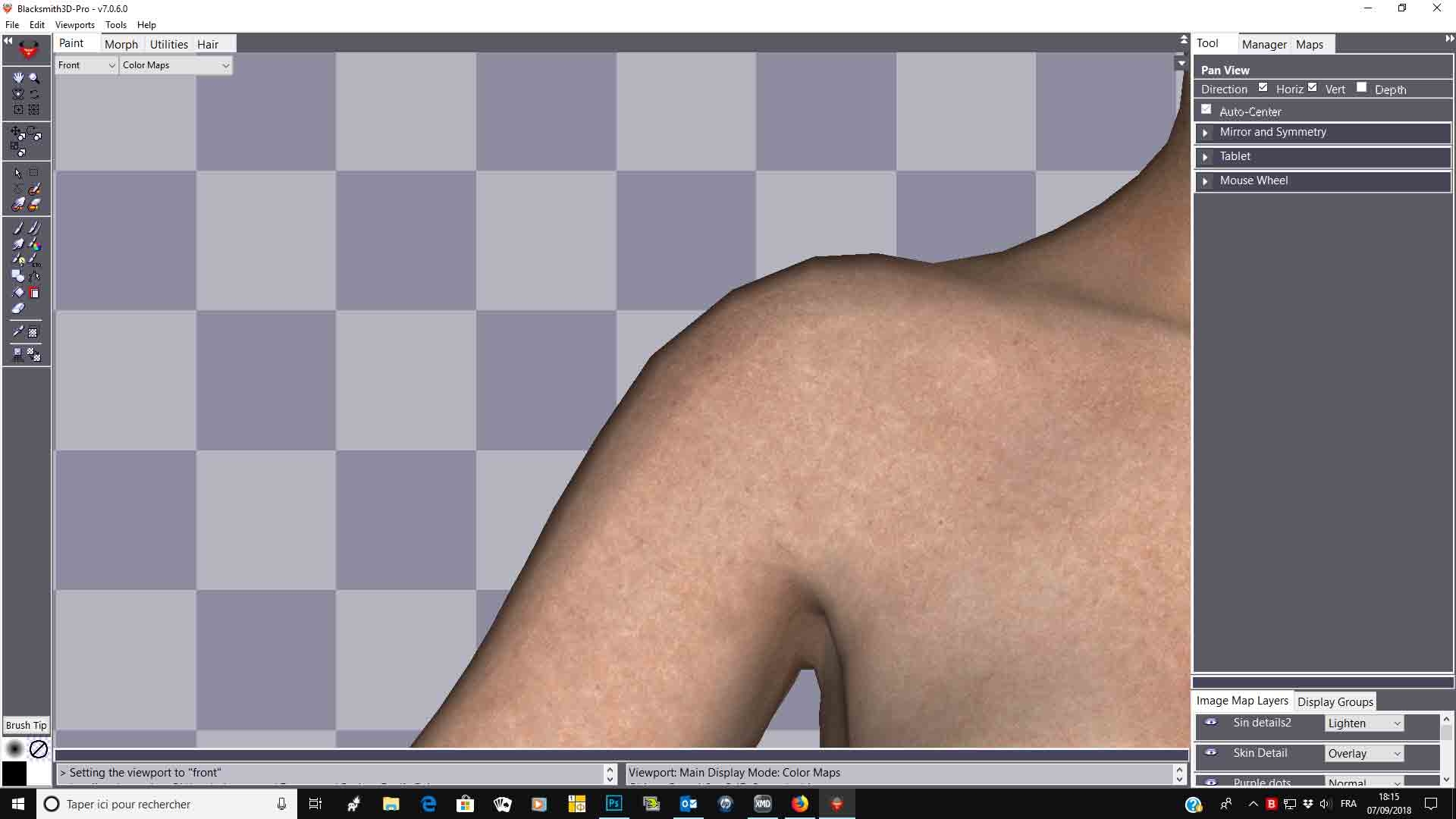 Use selection brush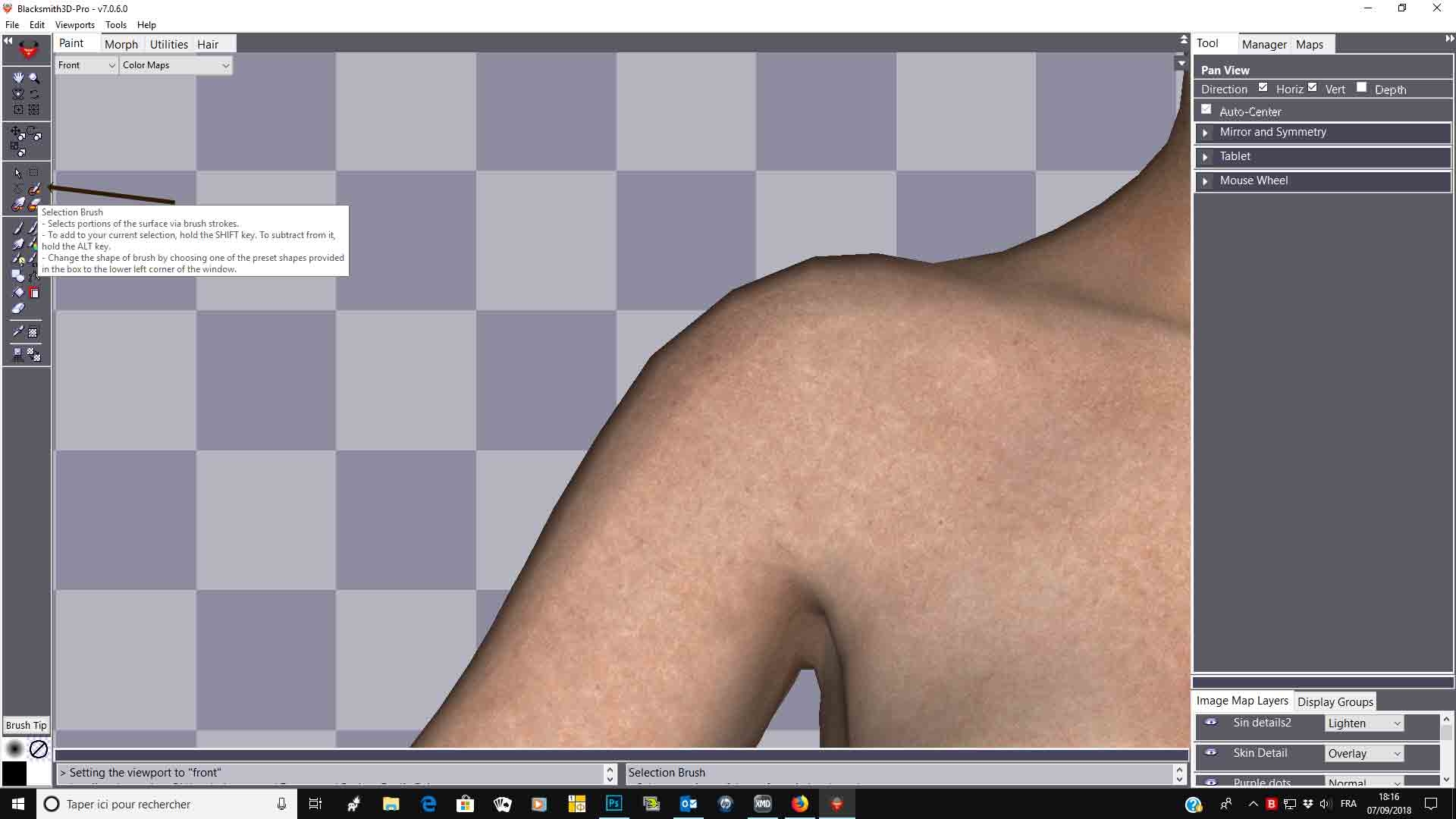
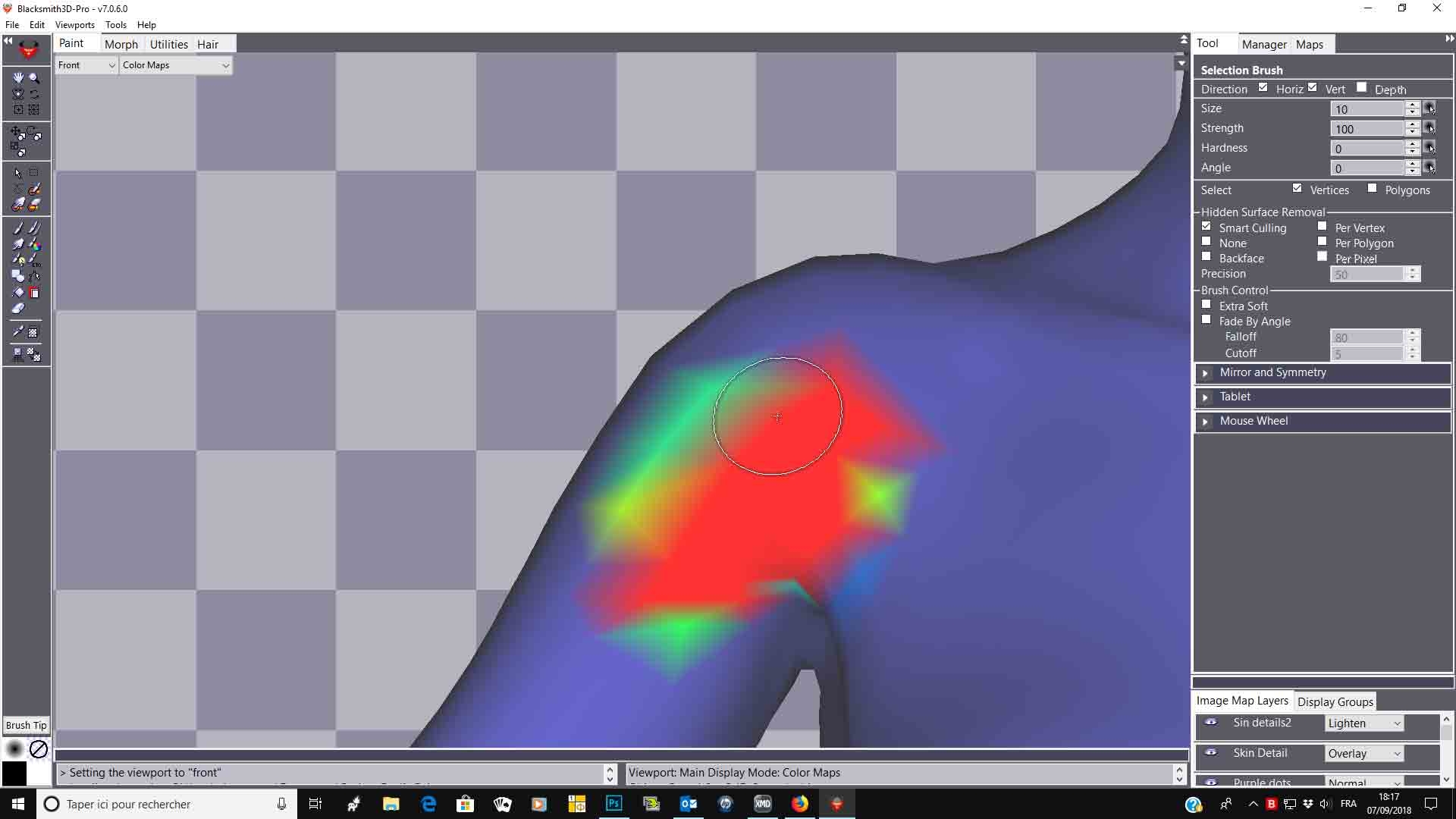
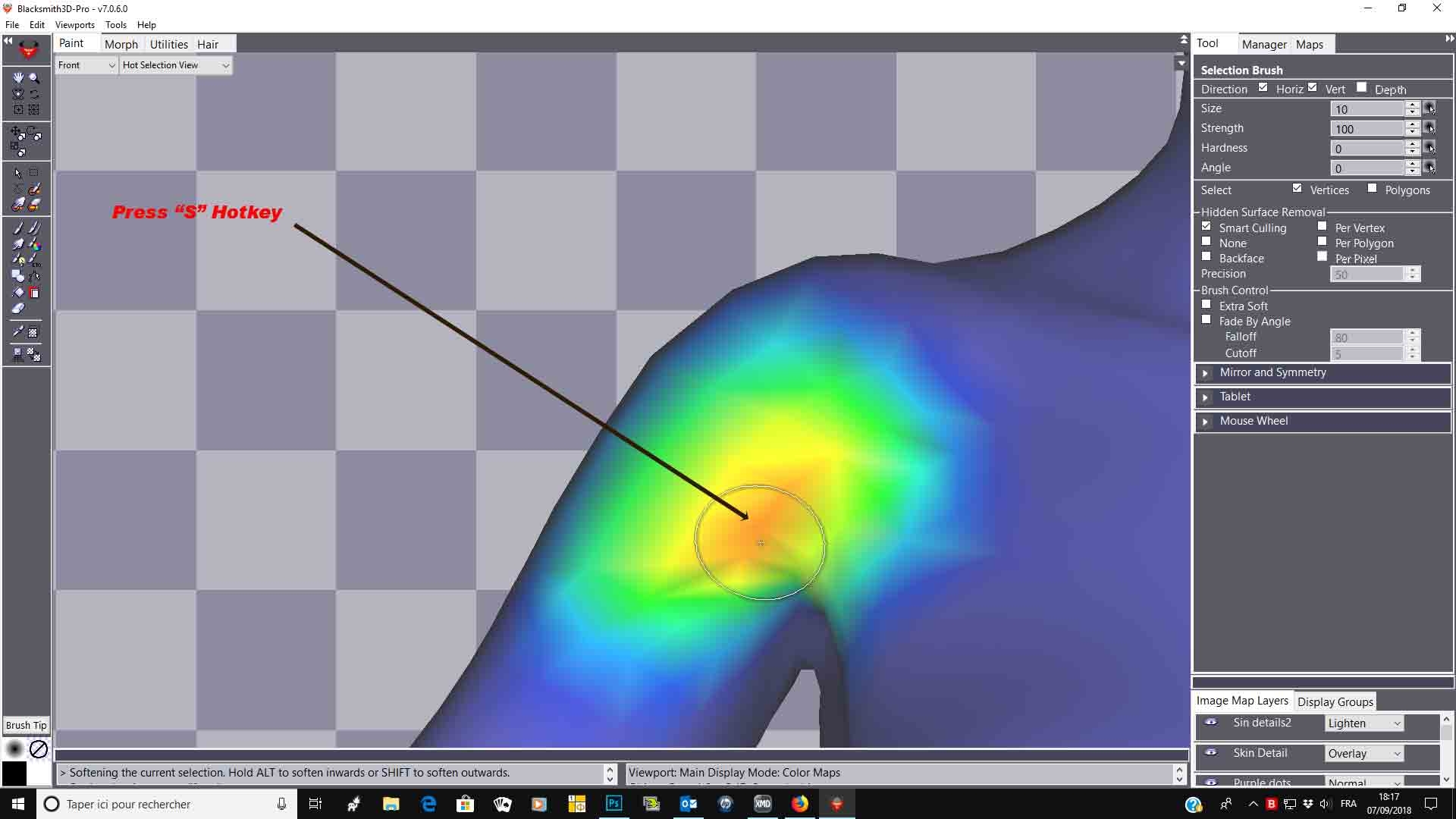
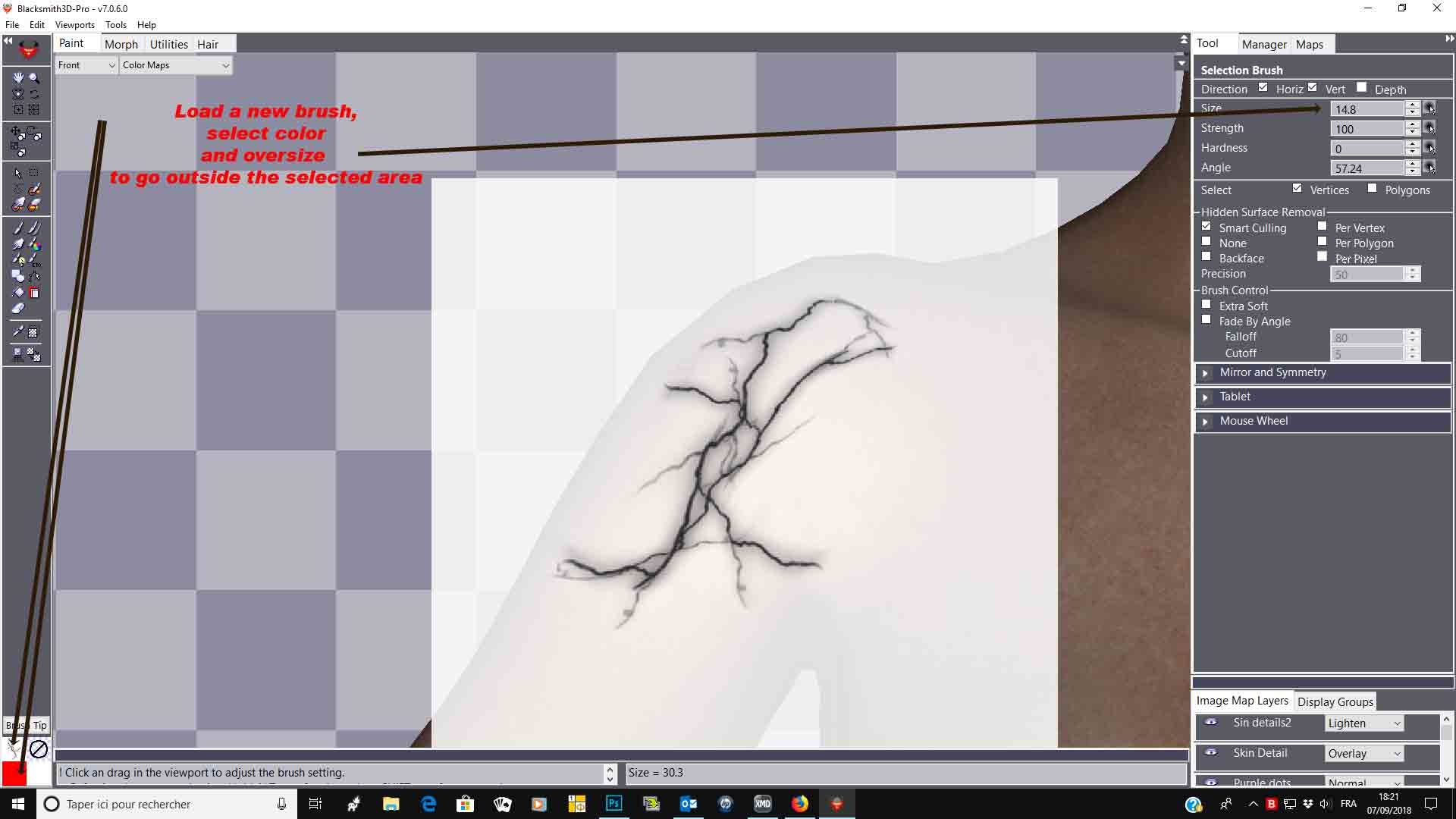
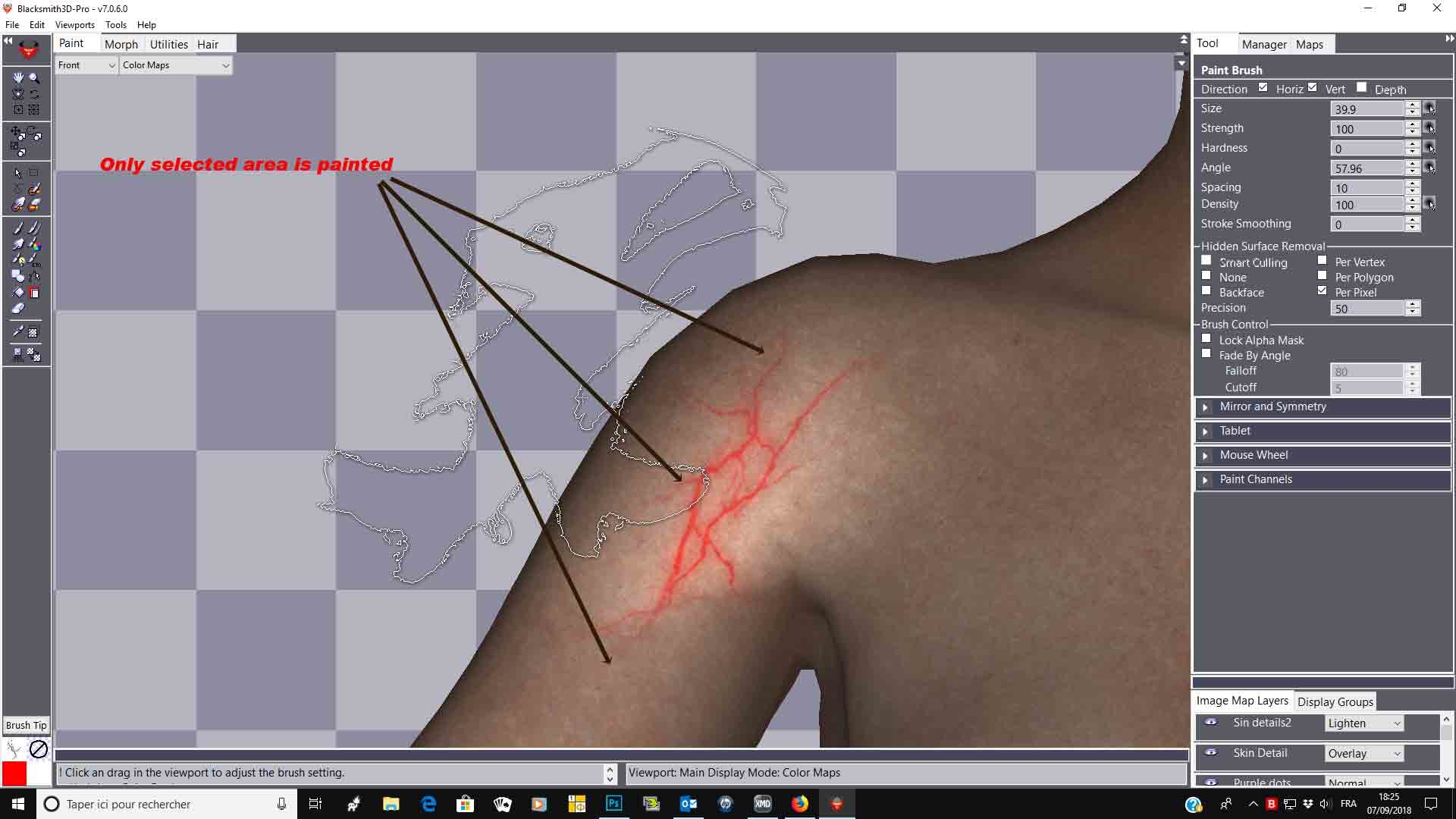 You only paint the desired area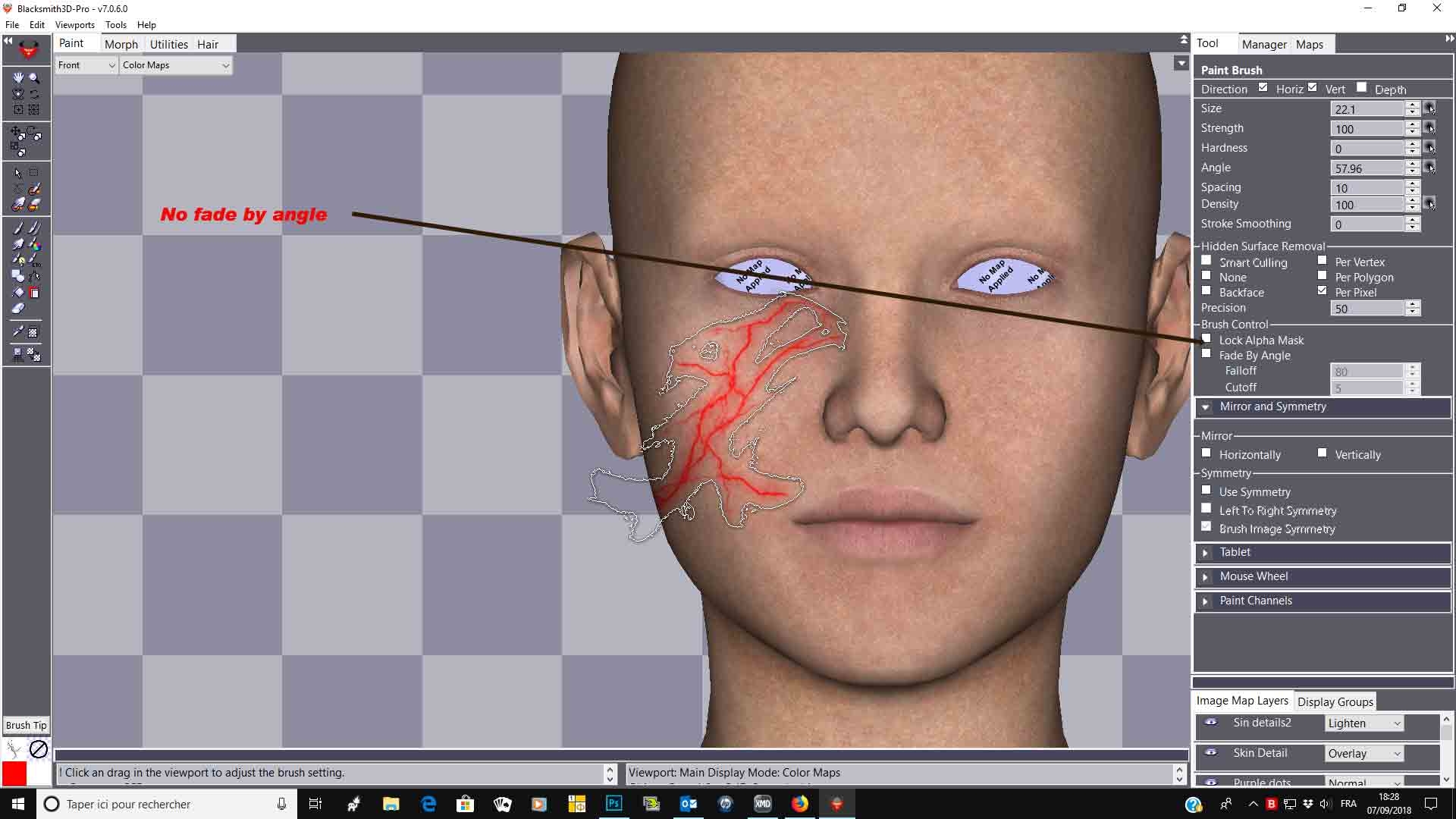

Privacy Notice
This site uses cookies to deliver the best experience. Our own cookies make user accounts and other features possible. Third-party cookies are used to display relevant ads and to analyze how Renderosity is used. By using our site, you acknowledge that you have read and understood our Terms of Service, including our Cookie Policy and our Privacy Policy.
Trying to learn painting of my own 3D objects in BS 4. A odd thing happens when i paint or clone over a seam. The paint won't cover the area and weird artifacts show. Could it be how i UVmapped the object?