1
 Create
your type layer, or import your shape that you want to turn into
shiny chrome Render type: right click/mac Cmd click the name on the
layer and select "render type". This converts your text
to an object, so you can apply all the filters to it.
Create
your type layer, or import your shape that you want to turn into
shiny chrome Render type: right click/mac Cmd click the name on the
layer and select "render type". This converts your text
to an object, so you can apply all the filters to it.
2
 select a dark gray for
your foreground color and a light gray for your background.
select a dark gray for
your foreground color and a light gray for your background.

3
 Select
the gradient tool (Linear, fore to background) and drag from the
top to the bottom of the image. Tip: Hold
down the shift key to constrain to 90 degrees.
Select
the gradient tool (Linear, fore to background) and drag from the
top to the bottom of the image. Tip: Hold
down the shift key to constrain to 90 degrees.
Â
Â
4
 Add
a bevel to the type using the Layer style - Bevel and emboss. Your
type should look like this now.
Add
a bevel to the type using the Layer style - Bevel and emboss. Your
type should look like this now.
Fig. 1
Â
Â
Â
Â
5
 Now
we want to remove the layer style, but we want to keep the bevel
(Merge the effect into the layer).
Now
we want to remove the layer style, but we want to keep the bevel
(Merge the effect into the layer).
We do this by adding a
new layer and dragging it directly underneath the layer with the
effect ("Chrome" layer). See fig.
1.
Now select the
"Chrome" layer thumbnail and press Cmd/Ctrl+E This merges the selected layer
with the one directly under it and "renders all effects"
See fig. 2
Â
Â
6
 Apply
the plastic wrap filter. This is found under
Effects>Artistic
Apply
the plastic wrap filter. This is found under
Effects>Artistic
Â
Â
7
 Making
the Chrome
Making
the Chrome
This is where it all happens: Open Image>Adjust>Curves
Cmd/Ctrl+M and make a
curve like the one in the example.
Or you can click here to upload the curve if you wish 
Â
Â
Â
Â
Â
Â
Â
8
 Click
ok.
Click
ok.
The image shows the
results of the curve applied to the image.
9
 Repeat
the same settings, by holding down the Alt/Option key as you open
the dialog box Image>Adjust>Curves or Option+Cmd/Alt+Ctrl+M
Repeat
the same settings, by holding down the Alt/Option key as you open
the dialog box Image>Adjust>Curves or Option+Cmd/Alt+Ctrl+M
The
result as shown here
If you want, Colorize
the image with the hue/saturation.
 This
is how it looks after applying a black background color.
This
is how it looks after applying a black background color.
NOTE: In Photoshop CS and CS2 you can make chrome by choosing
the double ring setting in the Layers Styles (Bevel -Gloss
Contour)
For more cool techniques like this on an easy to follow video
format check out Photoshop Secrets Special FX photoshopCD.com
Â

 If
you're interseted in learning more cool type effects, be sure to
check out Colin's new "
If
you're interseted in learning more cool type effects, be sure to
check out Colin's new "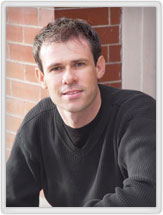 Colin Smith is a
best-selling author, trainer, and award-winning new-media designer
who has caused a stir in the design community with his stunning
photorealistic illustrations composed entirely in Photoshop. He is
founder of the world’s most popular Photoshop resource site,
PhotoshopCAFE.com, which boasts over three million visitors.
Colin Smith is a
best-selling author, trainer, and award-winning new-media designer
who has caused a stir in the design community with his stunning
photorealistic illustrations composed entirely in Photoshop. He is
founder of the world’s most popular Photoshop resource site,
PhotoshopCAFE.com, which boasts over three million visitors.


Comments