Filter: Safe | Sun, Jul 26, 4:18 PM CDT

Renderosity Forums / Carrara


Welcome to the Carrara Forum

Forum Coordinators: Kalypso, Anim8dtoon

Carrara F.A.Q (Last Updated: 2026 Jul 11 2:50 am)


Visit the Carrara Gallery here.

Carrara Free Stuff here.

 
Visit the Renderosity MarketPlace - Your source for digital art content!


Subject: How to render a transparent background


ominousplay ( ) posted Thu, 27 September 2007 at 8:35 PM · edited Thu, 23 July 2026 at 6:18 PM

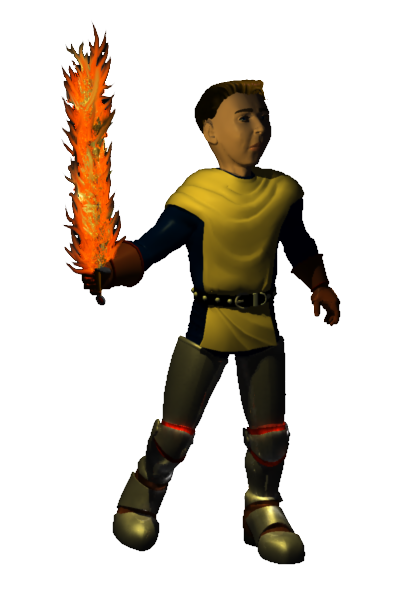
I am trying to render a simple transparent background ( no background ) behind a single model - like is possible in Poser - .png file. It renders out transparent. How do I do this in Carrara?

Never Give Up!


hdaggers ( ) posted Thu, 27 September 2007 at 9:06 PM
  1. select a file format that can have alpha channels (Tiff, PSD).
  2. click on Render Alpha Channel

If you have a background or backdrop it will render, but will only show if your viewing program can't  use the transparency.


ominousplay ( ) posted Fri, 28 September 2007 at 11:12 PM

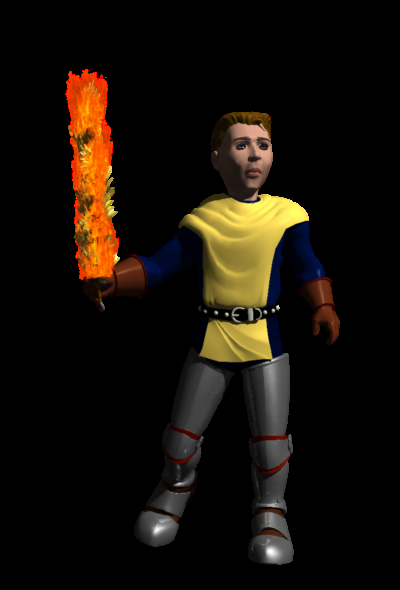
file_389363.jpg

Thank you hdaggers. I didn't know it was that easy!

Never Give Up!


ominousplay ( ) posted Fri, 28 September 2007 at 11:49 PM · edited Fri, 28 September 2007 at 11:53 PM

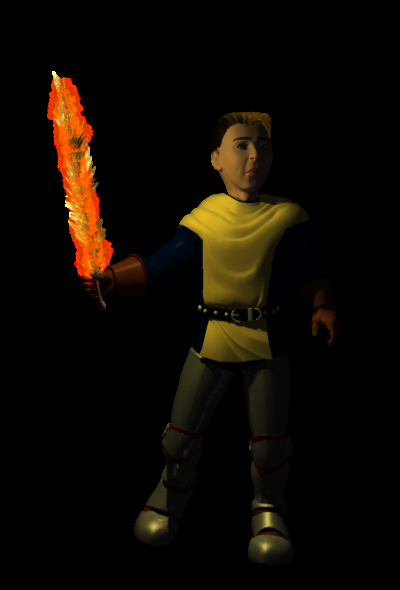
file_389367.jpg

I'm obsessed with the flaming sword!

Never Give Up!


ominousplay ( ) posted Sat, 29 September 2007 at 12:45 AM

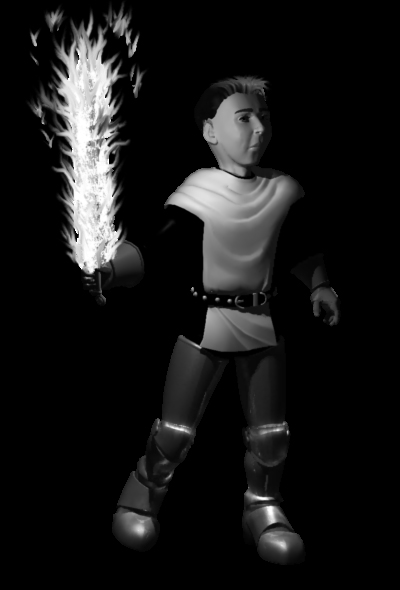
file_389370.jpg

Just one more - couldn't make it a transparent background - the flames were edited in PHotoshop for this one, and I couldn't figure out how to add to the alpha channel as I pushed/ smudged the flames around - does anyone know how to set that up in Photoshop? I smudged the flames around, and then realized the alpha channel was set - it needed to be adjusted and what I added on maybe a new layer, that needed to be added to the alpha channel. I don't know.

Never Give Up!


bwtr ( ) posted Sat, 29 September 2007 at 1:14 AM

Hope I can explain this clearly.
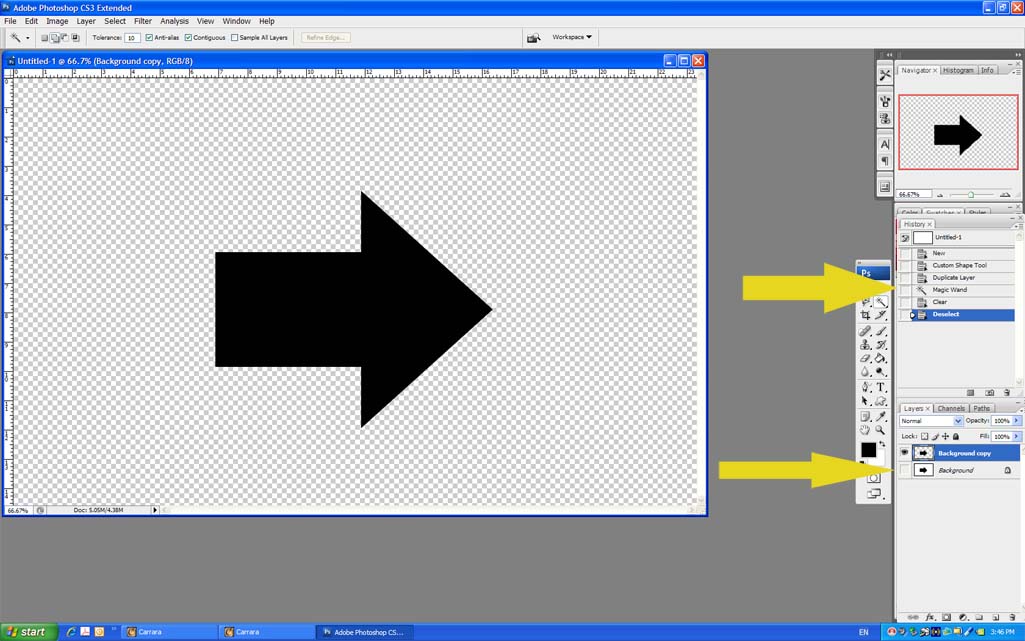
In Photoshop duplicate the image .Select the background with the magic wand and  click delete.
Close the "eye" on the original background image.
Save the result as a .png file.

Hope that helps.

bwtr


bwtr ( ) posted Sat, 29 September 2007 at 1:20 AM

file_389373.jpg

Is this helpful?

bwtr


ominousplay ( ) posted Sat, 29 September 2007 at 2:39 AM · edited Sat, 29 September 2007 at 2:40 AM

file_389378.jpg

You're the man Brian, thank you. I've been trying to learn how to do this for a long time. I had to paint the alpha mask around some of the flame, and this is a bit messy, but the process is working. If I take more time, it will look better. If I can learn to just select colors, then I wouldn't have to rely so heavily on the wand tool, but this is working. Thanks again.

Never Give Up!


bwtr ( ) posted Sat, 29 September 2007 at 4:22 AM

It can be very helpfull at times to change the value of the wand. I think 32 is the default setting.
Keep that in mind. You can start off with a low setting and gradually add areas with the add to selection un til you get exactly only what areas  you want.

A brilliant tool!

bwtr


lululee ( ) posted Sun, 07 October 2007 at 3:27 PM

If you render ot a Targa with a black background it will give you a transparent background.
cheerio  lululee


Privacy Notice

This site uses cookies to deliver the best experience. Our own cookies make user accounts and other features possible. Third-party cookies are used to display relevant ads and to analyze how Renderosity is used. By using our site, you acknowledge that you have read and understood our Terms of Service, including our Cookie Policy and our Privacy Policy.