












Trancendence In The White Room by KatesFriend

Close
Hover over top left image to zoom.
Click anywhere to exit.
Members remain the original copyright holder in all their materials here at Renderosity. Use of any of their material inconsistent with the terms and conditions set forth is prohibited and is considered an infringement of the copyrights of the respective holders unless specially stated otherwise.
No AI - This artwork was created entirely by hand or with traditional digital tools.
Description
Hello Everybody!
So sorry to have been away for a while and neglecting my projects. But surprisingly I have more work to do during lockdown and working from home than I did when I was commuting everyday. I don't miss the commute, but I seem to have less time for other things. And my spare time is further taken up with supporting family members who need additional assistance these days. Remote accessing my rendering computer is also a challenge right now.
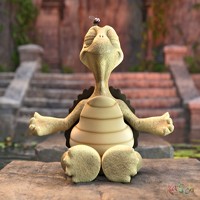
So I doodled this piece together featuring Bethany practicing her yoga. It was more a technical exercise than an act of inspiration but I enjoyed it.
This is actually a variation of another white room rendering I created named 'Yoga In The White Room'. This time I floated Bethany off the floor in a lotus position and placed a hi-res square behind her, scaled to fill the frame. The square itself is coloured pure ambient blue with all other colour options set to zero - aka. 'blue screen'. Bethany's outfit has some green in it so the backdrop had to be blue and not green.
My white room renderings utilize a single, infinite Sun like light source with indirect lighting and eight (8) to ten (10) ray trace bounces enabled for rendering options. The trick with the blue screen is to turn off its 'shadows' and its 'visible in raytace' object options. This, combined with hi-res squares being 'single sided' in Poser, means that the blue screen does not interfere with the normal white room lighting effects. It is effectively invisible even though it appears in the final rendering as a uniform blue background.
Then I took the finished rendering and copied it into GIMP. Actually, I copied it into GIMP twice, one layer over top of the other and processed the project as follows.
- Lower Layer:
- Use the 'select by colour' tool to select all portions of the blue background.
- Set selected space black with the 'bucket fill' utility.
- Select the 'Zoom Motion Blur' filter in the Filter menu.
- Set the centre of motion - the symbol on Bethany's leotard.
- Set the 'blur factor' to one - click OK.
- Select the 'Brightness-Contrast' tool in the Colours menu.
- Increase contrast to 90% of maximum
- Lower brightness until colours are visible and saturated - click OK.
- Select the 'Hue-Saturation' tool also in the Colours menu.
- Adjust the hue to desired shade.
- Upper Layer:
- Use the 'select by colour' tool to select all portions of the blue background.
- Use the Delete key to clear the selected area leaving it transparent.

Comments (7)
glad your back and ok Clayton. I like the pov and fx.,
Very lovely!
Clayton, you did a marvelous job in creating this image. I understand how busy you are, and I’m glad to see your work.
Amazing !!
Very powerful and beautifully done!
"Sorry, no nudity". Again? V3 has naughty bits, if I recall. Great render! Welcome back.
Cool POV and I like that background