


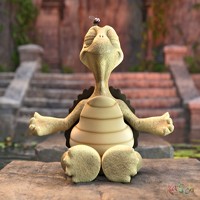










toon edge test by midnight_stories

Close
Hover over top left image to zoom.
Click anywhere to exit.
Members remain the original copyright holder in all their materials here at Renderosity. Use of any of their material inconsistent with the terms and conditions set forth is prohibited and is considered an infringement of the copyrights of the respective holders unless specially stated otherwise.
No AI - This artwork was created entirely by hand or with traditional digital tools.
Description
At the moment I'm a bit stuck I'm wrestling with two programs to get my toon edges. The edging on this picture was done with a 2d filter and I'm starting to head in that direction. I find I'm getting frustrated with not achieving the look I want. After nearly a year and a half I'm still no closer. Well just want to say oblivion will be a bit slow for a while till I'm happy with the look so hang in there and thanks for the great comments I really should thank you all personally but time is so tight these days. So see you next page.
P.S. any feedback is much appreciated

Comments (7)
For the renderings I've been doing lately, I always orient the lights near the camera, and turn shadows off. That way, dark areas come out along the edges of objects, which gets a much better result from the toon filter. I also filter everything in Photoshop big, around 2500 pixels in height, and then shrink it down afterwards. I usually adjust the levels to brighten things up, then oversaturate the colors before applying any of the effects to get the look I like. Great image - looks nice!
Take your time, you have an excelent story aand art. Being quite honest, I don't care much for this image. I can not tell you exactly why...maybe the lines are to hard with details blurring into each other, as under the blue ball thing, maybe it's the coloring...I can't pin it down, I just don't find this very pleasing.
I am testing out a program called Inkscape. (Freeware) It will create a raster line/blotch of any image loaded. If you take a copy and adjust the contrast to clean up the excess detail, (But not too much) import it into Inscape, then select "Path" menu; "Trace Bitmap..." it will allow you to rasterize the image and give some amount of control over the process. Once satisfied, export the image as a PNG. Now it can be layered into the original image with what ever other filters you place on it inside of Photoshop or Gimp. Worth investigating. This stage set is quite detailed and laid out well.
Not that sure about this image. The set is excellent, well detailed and has a great feel to it. Look forward to seeing this set in Oblivion. However the toon edges on this image, IMHO, seem to detract from the overall effect. Like Idgilman, I think the lines or toon edges seem to blur together too much. I much prefer your other images. This one just does not leap out at me like so many of your others. Sorry to be a pain as you have most likely invested quite a bit of time on this image and then idiots like me go and pull it apart. I must say I am really enjoying where you are taking Oblivion and keep up the great work.
Take your time - the 2D filter works for now until you find your proper filter or program
Alot times I get decent results using some good photoshop filters like the ones AdamWright sells here in the store. I'm no expert but the best advice I can give is just keep playing around till get the look you're going for you seemed to have all the tools you need.
I haven't posted any toon work on 'rendo, but I've done a lot of it. I was never really was satisfied with filter results in any program, I prefer to do it the hard way with a graphics tablet in photoshop or gimp, or by hand in pen and ink. RBlues suggestion seems like a good one though. Inkscape is a good program from what I've seen.