
pj-bear opened this issue on Jul 01, 2002 · 12 posts
pj-bear posted Mon, 01 July 2002 at 5:00 PM
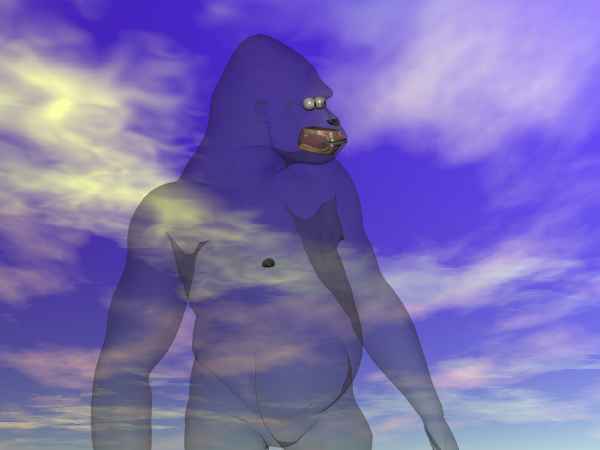

Little_Dragon posted Mon, 01 July 2002 at 5:13 PM
You can minimize the dark areas to some extent by playing around with global illumination (lots of lights) and the Ambient values of the materials.
A different approach (which in my opinion looks better) would be compositing in post. Render the figure normally (without making it transparent) against a blank background, then load the image into a paint program like Paint Shop Pro or Photoshop and use its alpha channel to composite it against a new background. By playing with the transparency values of each layer, you can make the figure as ghostly as you like. It gives you better control over the results.
Read this thread for details and illustrations.
littlechris posted Mon, 01 July 2002 at 5:13 PM
To be honest with you I think it looks OK but thats just my opinion, Ron might know.
darkphoenix posted Mon, 01 July 2002 at 5:19 PM
try rendering it without shadows
brian71us posted Mon, 01 July 2002 at 5:24 PM
I tried to do something similar with Stephanie, but I wanted to make her look like a glass figure. The problem that I had was that no matter how hard I tried I could still see some of the interior of the mouth (tongue, etc.). Brian
darkphoenix posted Mon, 01 July 2002 at 5:27 PM
you can apply plain black bitmaps as transparency materials to the teeth, tongue, and inner mouth to make them completely invisible, then you wont see these anymore now that i think about it, applying a black and white image of your color texture map into the transparency map slot might help you with your ghost look too.
Gorodin posted Mon, 01 July 2002 at 6:17 PM
Best bet is to render it separately and composite the image in post.

kumo posted Mon, 01 July 2002 at 6:20 PM
Attached Link: http://www.renderosity.com/viewed.ez?galleryid=128385&Start=1&Artist=kumo&ByArtist=Yes
i done a similar effect in ice, all i done was select the internal head parts and coloured them black, and set all the ambient highlight ect to whites and pale blues, i could have gone more transparent if i wanted to, also you could try using a darker back groung BEST OF LUCK
shadownet posted Mon, 01 July 2002 at 6:35 PM
Here is a slightly different approach to try in poser. Render the scene without the figure and then load it as a background image. Load figure and set depthcue on and render scene again. Figure should take on a transparent quality. Just for the record, most folks find it easier to do the ghost effect in post using a paint program that allows for layering of one image on top of another to get the transparent effect.

leather-guy posted Mon, 01 July 2002 at 8:39 PM


EricofSD posted Mon, 01 July 2002 at 11:03 PM
I've done that in Bryce with transparency settings in the mat lab and found that it was necessary to postwork the armpits and various other mesh overlaps.

bikermouse posted Tue, 02 July 2002 at 8:30 AM
Try using "filters" such as "Susan's Fog", transparent spheres,cubes etc. also use the square, make a foggy transparency map for it and place it infront of the subject. I haven't tried this myself but it is where I would start if I were trying this. Hope my off the cuff inferences help. let me know if it does. -bikermouse