
originalmoron opened this issue on Jul 18, 2008 · 10 posts
originalmoron posted Fri, 18 July 2008 at 1:46 PM
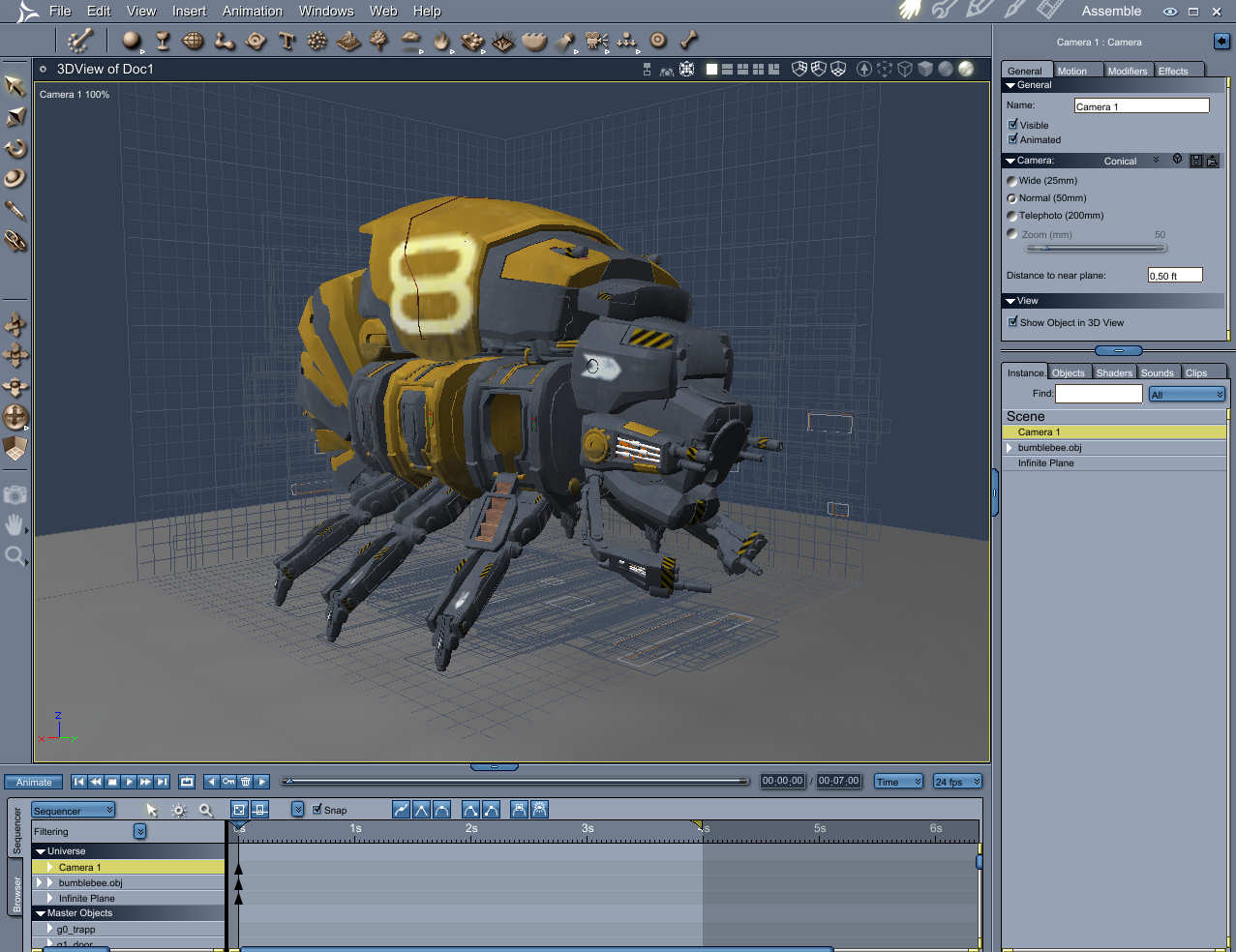

stardust posted Fri, 18 July 2008 at 1:50 PM

sparrownightmare posted Fri, 18 July 2008 at 1:56 PM
CTRL-ALT-F
originalmoron posted Fri, 18 July 2008 at 1:57 PM
Aha, that did the trick. Heh, production frame. Didnt ring a bell what so ever that it was the camera :)

Sueposer posted Fri, 18 July 2008 at 5:21 PM
Note that sometimes the frame is so large you cannot see it in the camera, then you have to switch to the render room and set the render size to something small so that the frame edges are in the camera again. (How do I know this....? Ha. ha.)

Plutom posted Sat, 19 July 2008 at 9:58 PM
or switch to the director's view to find that darn thing (the blue camera aka the production frame).

pauljs75 posted Mon, 21 July 2008 at 8:26 PM
Be careful sometimes though. You can actually grab the frame boundaries. I suppose it's considered a feature, but sometimes it's a pain if you do it unintentionally.
Your friendly neighborhood Wings3D nut.
Also feel free to browse my freebies at ShareCG.
There might be something worth downloading.

ren_mem posted Sun, 27 July 2008 at 9:41 PM
There was a reset production frame plugin, believe at associatedfx.com, but not upgraded for c6. Really should be integrated. I have never had this issue, but quite a few new users apparently have had this happen.
No need to think outside the box....
Just make it
invisible.

Miss Nancy posted Sun, 27 July 2008 at 11:47 PM
click the magni-glass on the lower left and shrink it to 75% or 50% to see the frame
in camera 1.
Plutom posted Mon, 28 July 2008 at 9:03 AM
If all of the above fails to get ye olde picture frame, try clicking on Camera 1, then in the dropdown menu, send it to origin-that will place the camera at the bottom and in the middle of the back and left grids. Now if the model can't be found either, do the same and you will now have the model with the camera and picture frame embedded in it-don't forget to group your model pieces together before doing this though. Jan