
PapaBlueMarlin opened this issue on Apr 14, 2006 · 68 posts
PapaBlueMarlin posted Fri, 14 April 2006 at 6:08 PM

Here's the original brown hair is above...
PapaBlueMarlin posted Fri, 14 April 2006 at 6:09 PM

PapaBlueMarlin posted Fri, 14 April 2006 at 6:10 PM

PapaBlueMarlin posted Fri, 14 April 2006 at 6:11 PM

PapaBlueMarlin posted Fri, 14 April 2006 at 6:12 PM

PapaBlueMarlin posted Fri, 14 April 2006 at 6:15 PM

PapaBlueMarlin posted Fri, 14 April 2006 at 6:16 PM


bagginsbill posted Sat, 15 April 2006 at 6:47 AM
You surely reduced it, but I still clearly see the painted highlights in your test shots. I tried this a while back as well. I also tried manipulating the texture itself in photoshop.
In all my results, like you, it was still possible to see the painted highlight. Its just TOO STRONG to get rid of.
I finally concluded that, MAYBE, another 20-30 hours in the shader room could get it better, but that it would take less time to just make a brand new texture for it, from scratch. When I tried, of course, the results were crap.
I know we can't look a gift horse in the mouth, but I wish Koz would make a texture without the white stripes. I'm sure he could do it in an hour, from his original textures.
I've stopped using Koz hair because I spend HOURS getting the skin and lights as good as I can and then have the Koz hair just ruin the whole effect of realism. The only option is to design your lights to match the hair.
Sigh.
Renderosity forum reply notifications are wonky. If I read a follow-up in a thread, but I don't myself reply, then notifications no longer happen AT ALL on that thread. So if I seem to be ignoring a question, that's why. (Updated September 23, 2019)

xantor posted Sat, 15 April 2006 at 7:38 AM
To me, taking the specular highlights out makes the hair look less realistic and how do you add in more realistic specular highlights? (without them the hair looks like a hat).

byAnton posted Sun, 16 April 2006 at 1:53 AM
Cool thread topic. Got me think. I want to experiment before coming back.
-Anton, creator of Apollo Maximus
"Conviction without truth is denial; Denial in the
face of truth is concealment."
byAnton posted Sun, 16 April 2006 at 2:09 AM
Cool thread topic. Got me think. I want to experiment before coming back.
-Anton, creator of Apollo Maximus
"Conviction without truth is denial; Denial in the
face of truth is concealment."

barrowlass posted Sun, 16 April 2006 at 2:58 AM

 **
**
My aspiration: to make a decent Poser Render I'm an Oldie, a goldie, but not a miracle worker :-)
byAnton posted Sun, 16 April 2006 at 2:59 AM

Hey Jeremy,
This is what I came up with.
-The peach color rids us of grey
-Noise simulates cuticle. Adds details, and lowers contrast.
hope that helps,
-Anton
Hey, I did that image too. hehe. I was just going to go look for the one you posted. witht he red and yellow. Thansk Shiela!
Jeremy that math fuction in my post can control contrast and brightness. Great thing about the material room is the many different ways you can do things.
AKmaterialroombookmark
-Anton, creator of Apollo Maximus
"Conviction without truth is denial; Denial in the
face of truth is concealment."
barrowlass posted Sun, 16 April 2006 at 3:05 AM
bm
My aspiration: to make a decent Poser Render I'm an Oldie, a goldie, but not a miracle worker :-)
byAnton posted Sun, 16 April 2006 at 3:36 AM
PS: This approach to any texture, figure etxtures too, not just hair. It can be any map.. bosy, face, eye, hair, or prop.
Awesome thread Jeremy
-Anton, creator of Apollo Maximus
"Conviction without truth is denial; Denial in the
face of truth is concealment."
byAnton posted Sun, 16 April 2006 at 3:59 AM
Related threads including this one.
Normalizing Highlights with nodes
http://market.renderosity.com/mod/forumpro/showthread.php?thread_id=2643355&page=1
Making Black Hair a new color with nodes
http://market.renderosity.com/mod/forumpro/showthread.php?message_id=2385752
Changing Yuki's red hair into Brown with nodes
http://market.renderosity.com/mod/forumpro/showthread.php?message_id=2384534
-Anton, creator of Apollo Maximus
"Conviction without truth is denial; Denial in the
face of truth is concealment."
PapaBlueMarlin posted Sun, 16 April 2006 at 9:40 AM
Thanks Anton! I started playing with this since noticing a face_off image where the speculars on the hair didn't match his lighting. I'm just a bit more familiar with the color ramp node than the hsv node. Unfortunately, the settings I posted with the hair node somehow affect the transparency. I have no idea how since the two were not remotely connected.
Anton, do your settings work with blonde hair as well?
byAnton posted Sun, 16 April 2006 at 3:51 PM
It should. They would need tweakign. It depends if you are starting with a blonde map or trying to turn a dark map blonde.
-Anton, creator of Apollo Maximus
"Conviction without truth is denial; Denial in the
face of truth is concealment."

diolma posted Sun, 16 April 2006 at 4:45 PM
Just wondering...
Most (if not all) of the tutorials I've seen for creating trans-mapped hair seem to start from creating a texture in Photoshop/PSP/whatever to define the strands, then adding highlights and transparency later.
If any of these merchants/freebie providers (Koz is a freebie provider, and for that alone I admire him, not to mention the quality of his work, which is excellent) still have the intermediate (strands only) stage available, then they could be VERY useful (assuming they were grey-scale)
1: Almost any colour could be applied to them.
2: The grey-scale could be utilised as a slight bump/displacement map to give the hair some depth (to alleviate the "helmet" effect).
3: Then specular should start to show some effect (showing up where relevant...).
My "Just Wondering" does of course rely on the possibility that the various providers still have these intermediate bitmaps and whether they would be willing to share them...
If they're not available, maybe there's a niche market there? From someone who knows WTF they're doing (as opposed to myself)...
Cheers,
Diolma
byAnton posted Sun, 16 April 2006 at 5:37 PM
Hair should be done now through greyscales or blondes. But it sounds radical and scary to some. But with nodes you can make any hair texture greyscale.
I did blondes for Wild and Messy (WAM) and all the colores were off one texture. I loved it .
Your reasoning is sound. Getting it to be embraced though... still 2 years laer and it isn't happening.
-Anton, creator of Apollo Maximus
"Conviction without truth is denial; Denial in the
face of truth is concealment."
bagginsbill posted Wed, 19 April 2006 at 3:30 PM

If you are very familiar with Koz's Long Hair Evolution, you should easily be able to see that the highlights have moved considerably. These renders were done with two lights, one front and high, the other from the left and low.
All the different colors were produced by changing only 3 parameters in an HSV node and occasionally a bias or gain value in my shader tree.
I'd give you the adjusted texture but that's not legal. But I can post how I did it and you can reproduce it yourself. Then you'll need my shader tree. Let me know if anybody wants more info.
Renderosity forum reply notifications are wonky. If I read a follow-up in a thread, but I don't myself reply, then notifications no longer happen AT ALL on that thread. So if I seem to be ignoring a question, that's why. (Updated September 23, 2019)
bagginsbill posted Wed, 19 April 2006 at 3:35 PM
Make sure you have Kozaburo's Long Hair Evolution installed.
I found the textures in runtimetexturesKozaburo.
Bring the file long_evo_platina_tx.jpg into photoshop. We want this one because it will be easiest to remove the highlights from a lighter hair color than a dark one.
The background on this texture never shows up in the render, but it will unfortunately influence the following steps so we need to adjust it.
That's it!
You now have a texture from which we can make an infinite number of colors in the material room.
Renderosity forum reply notifications are wonky. If I read a follow-up in a thread, but I don't myself reply, then notifications no longer happen AT ALL on that thread. So if I seem to be ignoring a question, that's why. (Updated September 23, 2019)
bagginsbill posted Wed, 19 April 2006 at 4:19 PM

Here's my shader tree. I used Anisotropic to get the broad, off-axis highlights characteristic of hair. I also used a specular node for straight-on highlights. You can adjust these to your liking and to match your light strength. The bias node next to the anisotropic node is strengthing the off-axis highlights. Raising the value increases the strength.
The Gain node under the clay controls how grainy the hair looks. Values around .1 give smooth, fine hair. Values around .2 to .3 give rougher, thicker hair.
The second value on the Add node (under the HSV node) can introduce more variation in the hair color. I used that to produce the rich Red hair with gold frosting.
Here are settings to use with this shader tree. (I tried to post a table but it doesn't work.)
Key: ColorName, Hue, Saturation, Value, and Special Settings
Auburn .8 .7 1
Black 1 .6 .2
Blonde 1 .6 1.3
Brown1 .8 1 .7
Brown2 .8 .8 .6
Brown3 .8 .9 .5
Brown4 .8 .9 .3
Copper .6 .9 1.3
Dirty Blonde .8 .7 1.1
Gray 1 .2 .8
Platinum Blonde 1 .4 1.4
Red .6 1 1.3 Set Adder under HSV to V1=.9, V2=.6
Silver 1 0 1.2
Strawberry Blonde 1 .9 1.3
Ultra Black 1 1 .1 Set the HSV Color to RGB=0,80,149 White 1 .2 1.6
Renderosity forum reply notifications are wonky. If I read a follow-up in a thread, but I don't myself reply, then notifications no longer happen AT ALL on that thread. So if I seem to be ignoring a question, that's why. (Updated September 23, 2019)

pleonastic posted Wed, 19 April 2006 at 4:27 PM
oh, brilliant. i've done my own haircolours pretty much right from when i discovered the power of the material room, but the highpass filter wasn't on my repertoire. thank you!

Tissaia posted Wed, 19 April 2006 at 5:32 PM
diolma posted Wed, 19 April 2006 at 6:24 PM
Just subscribed to this thread (don't quite know what that'll do, so this post is an old-fashioned bookmark).
@BagginsBill - I don't have (and can't afford) Photoshop. Do you (or anyone else) know if there's an equivalent in PSP9 (which I do have)?
Cheers,
Diolma

Rance01 posted Thu, 20 April 2006 at 4:16 AM
bookmark
bagginsbill posted Thu, 20 April 2006 at 4:19 PM
Diolma,
I'm no PSP expert but I think this is what you'd do.
Pretty much the same steps as for Photoshop, just different tools and menu item names.
Renderosity forum reply notifications are wonky. If I read a follow-up in a thread, but I don't myself reply, then notifications no longer happen AT ALL on that thread. So if I seem to be ignoring a question, that's why. (Updated September 23, 2019)

stahlratte posted Sat, 22 April 2006 at 5:20 AM
"Hair should be done now through greyscales or blondes. But it sounds radical and scary to some. But with nodes you can make any hair texture greyscale."
Hair "should" be done exactly the way each user preferrs. This has nothing to do with being scared or obstinacy like you so arrogantly assume, but different personal workflows and efficiency.
There are many ways leading to Rome, and some are actually faster than others.
Many thanks for the tutorial to delete the highlights in Photoshop, bagginsbill.
Worked like a charm.
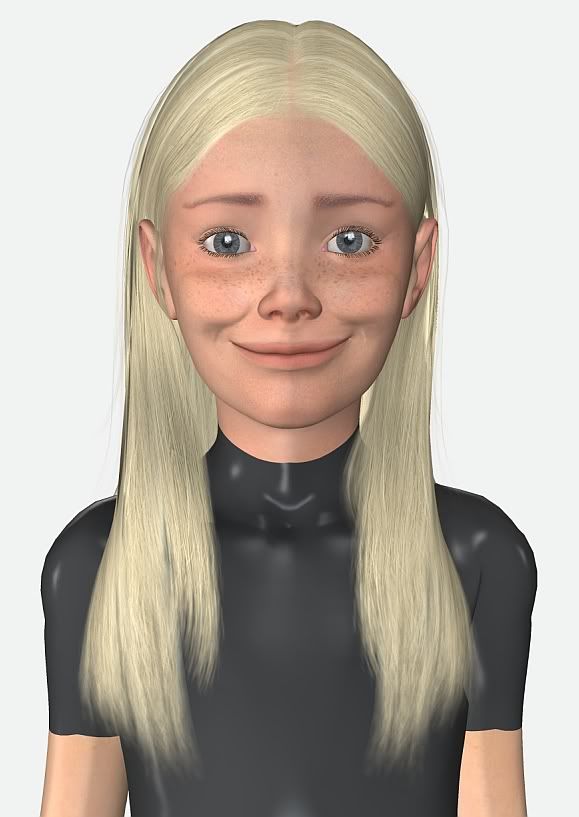
But instead of wasting my time tweaking a gazillion nodes and waiting for FireSnail to finish a Render, I instead spent 1 minute turning the grayscale into a proper blonde texture in IrfanView , which does IMO a better job doing such simple things than PS. ;-)
stahlratte (LoTech is my middle name)

takezo3001 posted Sun, 28 May 2006 at 2:39 AM
THANKS ALOT! PapaBlueMarlin, and bagginsbill! As you can see I too have been playin' around with the colour ramp technique before got P6: 
 I'm sorry they're old test renders, and soon I'll have something to shoot for! I always look forward to your tuts Bagginsbill! BTW, did I mention I LOVE redheads?
PapaBlueMarlin posted Sun, 28 May 2006 at 11:37 AM
baggins, did you use the same color for each of those settings?
bagginsbill posted Tue, 30 May 2006 at 8:06 AM
Quote - baggins, did you use the same color for each of those settings?
Yep - same color. It is the basic tone and works for any color human hair. I use the Hue and Saturation numbers to shift it around the color space.
Takezo - your "test" renders already look really good. Cool effects.
Renderosity forum reply notifications are wonky. If I read a follow-up in a thread, but I don't myself reply, then notifications no longer happen AT ALL on that thread. So if I seem to be ignoring a question, that's why. (Updated September 23, 2019)
takezo3001 posted Wed, 31 May 2006 at 8:24 AM
Quote - > Quote - Takezo - your "test" renders already look really good. Cool effects.
Terribly sorry for the delayed "RE",But THANKS! I also love your new editions in your gallery! That was my first discovery of blinn! This was also my attempts to curtail the blasted "Highlights" found in most trans-mapped hair. Don't get me started on highlighted eyes,and skin tex!) ..The only problem with my earlier work, is that there's some graphical conflict where the transparancies clash with the regular text.. I'm still working on my skin mats as well...I've went through 20-30 revisions...I haven't even been uploading anything in my gallery, 'cause I'm so addicted to that blasted node-room! ;)
mickmca posted Sun, 20 August 2006 at 8:05 AM
Is it just me, or does BB's Koz solution seem to lose the transparency that gives more realistic strands (as in Stahlratte's kid)? The multi-color Jessi picture looks to me like a woman wearing a shawl that's been razored into strips and silkscreened to look like hair. No disrespect to miracle workers, but is there something missing from the solution?
M
bagginsbill posted Thu, 24 August 2006 at 1:50 PM
No it's not just you. However, the problem isn't what you think it is. The transparency has not been modified. The wierdness you see is because, having removed the painted-on highlights, the shader is calculating accurate highlights for the real light position and the geometry of the mesh. Unfortunately, the mesh really isn't done in a way that the strips lay along the same angle where they overlap. The strips are kind of bowed out, so as you go from one strip to the next, the angle changes a lot. You don't notice this with Koz's shader, because he painted the speculars and has the specular calculation turned off.
Which was the whole point of the exercise - how to get rid of the fixed, immovable, unrealistic painted on speculars and replace with real dynamic speculars.
The calculation of specular reflection, which is very sensitive to the angle of the surface, is producing very different results from one strip to the next in the same area because of the rounded shape and overall angles of the strips.
So it's not that great a solution I guess. Since I posted this, I've become much more capable with the shader nodes, and I tried a few devious tricks to get around the problem. But I can't find a way to make the anisotropic specular stop lighting the strips so glaringly. I can do it with the regular specular node, but it doesn't look hair reflections. The anisotropic shader node specifically simulates the broad blurry specular reflections produced by finely grooved surfaces. Without it, the reflections look like plastic reflections, not hair.
I suppose you could load the mesh into a modeling tool and flatten the strips so they aren't so round any more. That would fix the problem.
Renderosity forum reply notifications are wonky. If I read a follow-up in a thread, but I don't myself reply, then notifications no longer happen AT ALL on that thread. So if I seem to be ignoring a question, that's why. (Updated September 23, 2019)
ice-boy posted Fri, 17 October 2008 at 7:04 AM
Quote - Here's my shader tree. I used Anisotropic to get the broad, off-axis highlights characteristic of hair. I also used a specular node for straight-on highlights. You can adjust these to your liking and to match your light strength. The bias node next to the anisotropic node is strengthing the off-axis highlights. Raising the value increases the strength.
The Gain node under the clay controls how grainy the hair looks. Values around .1 give smooth, fine hair. Values around .2 to .3 give rougher, thicker hair.
The second value on the Add node (under the HSV node) can introduce more variation in the hair color. I used that to produce the rich Red hair with gold frosting.
Here are settings to use with this shader tree. (I tried to post a table but it doesn't work.)
Key: ColorName, Hue, Saturation, Value, and Special Settings
Auburn .8 .7 1
Black 1 .6 .2
Blonde 1 .6 1.3
Brown1 .8 1 .7
Brown2 .8 .8 .6
Brown3 .8 .9 .5
Brown4 .8 .9 .3
Copper .6 .9 1.3
Dirty Blonde .8 .7 1.1
Gray 1 .2 .8
Platinum Blonde 1 .4 1.4
Red .6 1 1.3 Set Adder under HSV to V1=.9, V2=.6
Silver 1 0 1.2
Strawberry Blonde 1 .9 1.3
Ultra Black 1 1 .1 Set the HSV Color to RGB=0,80,149 White 1 .2 1.6
modeled my hair in blender. it is not trans mapped. but just a prop basicly.
can i use those settings or is this only for transparency?
how could i use those settigns in the gammma correction shader? just copy the specular settings?
thanks
ice-boy posted Fri, 17 October 2008 at 10:50 AM
Quote - Preparing Long Hair Evolution Make sure you have Kozaburo's Long Hair Evolution installed.
I found the textures in runtimetexturesKozaburo.
Bring the file long_evo_platina_tx.jpg into photoshop. We want this one because it will be easiest to remove the highlights from a lighter hair color than a dark one.
The background on this texture never shows up in the render, but it will unfortunately influence the following steps so we need to adjust it.
- Choose menu item Select/Color Range to bring up the dialog box that lets us select pixels of a given color range.
- In the Color Range dialog, set the Fuzziness to 20. (Other textures may need more fuzziness. For example, short bob needed around 40+)
- Click on the dark ground background in the picture to select that color. Don't click on the hair.
- Press OK to Dismiss the Color Range dialog
- Leaving the selection active, convert the image to gray scale by the menu item Image/Mode/Grayscale
- In the color picker palette, enter 25% - this should load a light gray into your tool.
- Hit Alt-Delete to fill the background with this light gray color.
- Clear your selection region by hitting Ctrl-D.
- Choose menu item Filter/Other/High Pass...
- In the High Pass dialog, enter a Radius of 15.
- Click OK on the High Pass dialog. The highlights are now gone.
- Choose menu item Image/Adjust/Levels...
- You should see a black peak in the middle of the Levels dialog. Press Auto to strengthen the contrast. If the lower bound is not tight with the group, move it up manually.
- Dismiss the Levels dialog by hitting OK.
- I prefer less grainy textures so I usually shrink the texture here. Select menu item Image/Image Size...
- Make sure "Constrain Proportions" is checked.
- Make sure "Resample Image: Bicubic" is checked.
- Enter a width of 1024. The height should adjust to 954 automatically.
- Dismiss the Image Size dialog by hitting OK.
- Use File/SaveAs to store this image in the same directory, but under the name long_evo_generic.jpg. Use Quality 10.
That's it!
You now have a texture from which we can make an infinite number of colors in the material room.
i just wanted to post the high pass filter. and then i see that you already explained it.
http://unsharpmasked.com/blog/2008/08/photoshop-high-pass-filter-removing-wrinkles-in-fabric-part-2/
also very good for skin.
bagginsbill posted Sat, 18 October 2008 at 9:42 AM
Quote - modeled my hair in blender. it is not trans mapped. but just a prop basicly.
can i use those settings or is this only for transparency?how could i use those settigns in the gammma correction shader? just copy the specular settings?
thanks
Transmapping doesn't change the nature of a material. It is just a trick to make a polygon shape into another shape by "removing" some of it with the transparency channel.
So of course you can use those settings (or any shader) on any sort of prop. It doesn't matter if the prop has the final shape already in the mesh or you further cut it up with transparency later in the shader.
As for gamma, insert a gamma anti-correction between the HSV and the Clay. (Raise to the Power 2.2) Then insert a gamma correction between the Color_Math:Add and the Alternate_Diffuse input. (Raise to the Power 1/2.2).
Renderosity forum reply notifications are wonky. If I read a follow-up in a thread, but I don't myself reply, then notifications no longer happen AT ALL on that thread. So if I seem to be ignoring a question, that's why. (Updated September 23, 2019)
ice-boy posted Sat, 18 October 2008 at 9:46 AM
this settings are good. normal specular just doesnt look good on hair. it looks 100% fake.
thanks
ice-boy posted Fri, 24 October 2008 at 6:04 AM
i noticed that you made xdir_x and xdir_z 1. i dont notice a change with those settings.
what are those settings for?

jdredline posted Wed, 22 April 2009 at 12:09 PM

Is this correct? There is no such thing as a "gamma" node. You're renaming a math_function node as "gamma" then adding 1 or 2.2.
And if that's the case, is a Gamma "anti-correction" subtracting the same amount?
I assumed yes and followed these steps but the results make the hair loose it's assigned color.
Could you show us the updated set-up with gamma correction?
jdredline posted Wed, 22 April 2009 at 12:10 PM
I followed instructions as I interpreted them and lost my color.
jdredline posted Wed, 22 April 2009 at 12:12 PM


nruddock posted Wed, 22 April 2009 at 12:49 PM
Gamma correction isn't "Addition" its exponentiation (i.e. raise to the power for the non-mathmatical).
The function you want is "Pow" and the following node inputs/values :-
GC: Input1 <- the colour you want to correct.
Input2 <- 2.2
AntiGC: Input1 <- the colour you want to correct.
Input2 <- 1 / 2.2 (use a Math_Function node set to "Divide" with Input2 set to 2.2)
Make sure that you use "Color_Math" nodes for (Anti)GC calculations on colours ("Math_Function" nodes will change to greyscale, which probably isn't what you want).
bagginsbill posted Wed, 22 April 2009 at 4:13 PM
Backward.
2.2 is anti-GC
1/2.2 is GC
Renderosity forum reply notifications are wonky. If I read a follow-up in a thread, but I don't myself reply, then notifications no longer happen AT ALL on that thread. So if I seem to be ignoring a question, that's why. (Updated September 23, 2019)
jdredline posted Wed, 22 April 2009 at 6:08 PM
This is all great information, but I'm one of those non-mathematical persons you refer to above.
I know how to find a "pow" node but not what to do with it after I find it.
Your above sample shows input2 <- 2.2 which I can only interpret as meaning to put the value of 2.2 in the input2 of my Pow node. However, that node does not accept numerical values.
Any chance of "seeing" the set-up in action? I understand it better when it's visual.
bagginsbill posted Thu, 23 April 2009 at 2:57 AM
You use a Math:Add(2.2, 0) to make the number 2.2 and plug it into a color.
You use a Math:Div(1, 2.2) to make the number 1/2.2 and plug it into a color.
Renderosity forum reply notifications are wonky. If I read a follow-up in a thread, but I don't myself reply, then notifications no longer happen AT ALL on that thread. So if I seem to be ignoring a question, that's why. (Updated September 23, 2019)
jdredline posted Thu, 23 April 2009 at 12:15 PM
Well that cleared it up :-o
Although I know how to add, subtract, divide and multiply, translating these functions into the Poser Material Room is still a little beyond my reach.
Here's how I interpret your instructions:
Okay I need to use a Color_math node in order to keep the color, but the values only accept colors and not numbers.
And that's as far as I get. I have no idea how to assign "numbers" to them.
If you guys don't want to give the answer away because you think I'm smart enough to figure it out for myself then I've got bad news for you: although I am a smart person, my brain does not work in the "brainiac" mode that your's does.
Once the instructions are spelled out to me or if I see it visually then I can reverse-technology and make sense of it. I don't have enough knowledge about all the nodes and their functions in order to think my way through this puzzle from the beginning.
Yet.
But thanks for trying anyway.
bagginsbill posted Thu, 23 April 2009 at 2:17 PM
Quote - If you guys don't want to give the answer away because you think I'm smart enough to figure it out for myself then I've got bad news for you: although I am a smart person, my brain does not work in the "brainiac" mode that your's does.
OK But I'm on vacation in Paris and it cost me $12,000 to be here and I'm not spending time making pictures for you guys on my vacation. :-)
Somebody else knows how, I'm sure.
I'm saying that when a node wants a color, but you need a number, use a Math:Add node as if it were a simple number and plug it into the color where you need that number.
Renderosity forum reply notifications are wonky. If I read a follow-up in a thread, but I don't myself reply, then notifications no longer happen AT ALL on that thread. So if I seem to be ignoring a question, that's why. (Updated September 23, 2019)
ice-boy posted Thu, 23 April 2009 at 2:23 PM
go off from the internet and enjoy your vacation he he :)

RobynsVeil posted Fri, 24 April 2009 at 9:03 AM
Playing with Tequila hair. I'm embarrassed to show you the shader at this point because it's sure to be worked on some more... as with everything I do, I keep finding little, irritating issues. But, so far, at least the anisotropic is working... that highlighting is from scene lights. You'd laugh if you saw the colourMap... it's absolute rubbish: vertically motion blurred and heavily unsharp-masked noise. But it gave me what I needed... straight lines:

Oh, and everything has been gamma-corrected: skin, outfit... and I'm working on the hair.
Told you I'd be embarrassed to show you the shader for a reason. That's ONE reason.
Monterey/Mint21.x/Win10 - Blender3.x - PP11.3(cm) - Musescore3.6.2
Wir sind gewohnt, daß die Menschen verhöhnen was sie nicht verstehen
[it is clear that humans have contempt for that which they do not understand]
jdredline posted Fri, 24 April 2009 at 9:26 AM
Quote - Playing with Tequila hair...
That looks much better than what I'm getting so far.
Have you tested highlights by moving the camera at different angles? Some of my side angle highlights don't look as good as straight-on or quarter turn angles.
RobynsVeil posted Fri, 24 April 2009 at 10:17 AM
No, I haven't, and that's a good point. I've been having dramas with V-texture_coordinates or FractalSum or something giving me artefact (interruption of the texture), so I'm reinventing the wheel, but I will definitely be doing that, and thank you, dredline, for pointing that out.
Monterey/Mint21.x/Win10 - Blender3.x - PP11.3(cm) - Musescore3.6.2
Wir sind gewohnt, daß die Menschen verhöhnen was sie nicht verstehen
[it is clear that humans have contempt for that which they do not understand]
ice-boy posted Fri, 24 April 2009 at 10:25 AM
when using the anistotropic node you need to test different angles. plus the light above . very strange results.
RobynsVeil posted Fri, 24 April 2009 at 10:31 AM
Thanks for the heads up, ice-boy. I'm just in process of GIMP-kludging some high-res hair textures because FractalSum and V is being the drizzle-pits. Once I've had a sleep and then tried the textures I'll test that anisotropic head of hair from different angles and post results.
Monterey/Mint21.x/Win10 - Blender3.x - PP11.3(cm) - Musescore3.6.2
Wir sind gewohnt, daß die Menschen verhöhnen was sie nicht verstehen
[it is clear that humans have contempt for that which they do not understand]

fireangel posted Sun, 11 March 2018 at 12:40 PM
I realise this is an old thread, but it is still as relevant today as it was when the very first post here was made. Many hairs are still textured with painted on highlights and removing them can be a pain. Bagginsbill's method was a great revelation to me and extremely useful. Thanks very much for this simple trick, I doubt I would have found it on my own.
The shaders presented however, don't give such good results as the shading method I have found. I get better results and the shader is simpler so it renders faster.
My method does not need any elaborate shader nodes. It produces correct highlights that look like those on real hair, yet it uses only image map nodes. I don't even use the anisotropic shader for the highlights, but the normal specular slot. Because there are no elaborate node setups it renders quickly.
Here are two examples — please ignore the effects of the Renderosity system rescaling the images. The best way to view these it by using your browser's view image facility to view them at their native size. This is Radiant Jaguar Hair on Victoria 4 with my shader and textures — yes, you need more than one texture map to get this effect but they aren't hard to prepare once you have the greyscale map obtained using the Bagginsbill method in Photoshop:


I will post again once I have prepared the images for a clear explanation of how this works.
fireangel posted Sun, 11 March 2018 at 12:46 PM
I want to stress that without this thread to read I would never have discovered the methods I use to produce my hair shader. So a big thanks to Bagginsbill and PapaBlueMarlin for starting this process off.
fireangel posted Sun, 11 March 2018 at 1:10 PM
OK, so how does this work?
First, build a BUMP MAP. Take the greyscale image you get from using Bagginsbill's method in PhotoShop and use it to make a bump map for your hair. This is half of the secret to getting the proper specular highlights. After all if you want a reflected highlight to look as if it is being reflected from lots of strands rather than a smooth surface, adding strands to the surface works a lot better than the pretend method using the anisotropic shader. I also requires less calculation. Make sure your bump map has eveyr shade from pure black to pure white, and regulate its effect by changing the bump height in Poser. This gives better results than making a greyscale map with a limited range to regulate bump height.
Here is a clip from the bump map I used to produce the redhead in my image above:

Next, make a diffuse colour map, but make it slightly darker than you want the hair to look and experiment carefully with the saturation; you will often get best results if you use a colour that is less saturated than the final desired colour of the hair. Once again here is a clip from the map I used to maker the redhead above:

Now this provides your diffuse map, so load it as normal. Then make another colour map, using a colour slightly brighter and more saturated than you want the hair to look. Use this as your specular colour map. Here is a clip from the one I used above:

Nearly there! Now plug the original transparency map in as usual and use the following material setup as the basis for your own:

Yes, that's all there is! I hid the dialogue box details and revealed the maps so you can more clearly see what to load where. Values that you may need to experiment with to get the best results are the bump height and the specular highlight size. I used a fairly wide highlight size for the above renders. Take note of the diffuse value which is set to 0.8 not to 1.0, and the specular value which is the same. These values avoid blown-out specular highlights, not just on hair but on many other shaders. For light colours the specular value should often be set lower, below 0.5 in some cases.
Another thing to note is that it is important that the maps used have adequate contrast in them, so that the hair highlights are, on the close-up scale, stranded rather than continuous.
I hope this is useful to someone.

ThunderStone posted Mon, 12 March 2018 at 8:00 AM
Thanks for the tip. I wondered if it would work in Reality plug-in. Must open up my computer today!
===========================================================
OS: Windows 11 64-bit
Poser: Poser 11.3 ...... Units: inches or meters depends on mood
Bryce: Bryce Pro 7.1.074
Image Editing: Corel Paintshop Pro
Renderer: Superfly, Firefly
9/11/2001: Never forget...
Smiles are contagious... Pass it on!
Today is the tomorrow you worried about yesterday
fireangel posted Mon, 12 March 2018 at 7:28 PM
I'm glad you like it Thunderstone, I hope as many people as possible find it useful. I may need to start a new thread and try and persuade admin to sticky it. This topic is of interest to a lot of people. I think it could be adapted for most rendering systems.
fireangel posted Mon, 12 March 2018 at 7:30 PM
Oh, a bit more information that I forgot to include:
My suggestion, using a total of four texture maps to create the effect of hair, will use a lot more memory than using just one transparency map, a bump map and a node setup to generate the colours from the bump map. However the more complex node setup will render more slowly. I haven't yet done any testing to see what the speed difference is, once I do I will post that here too. It might be a few weeks as I have a lot of work stuff to get done over the next few weeks.
ThunderStone posted Mon, 12 March 2018 at 7:44 PM
fireangel posted at 8:41PM Mon, 12 March 2018 - #4325996
Oh, a bit more information that I forgot to include:
My suggestion, using a total of four texture maps to create the effect of hair, will use a lot more memory than using just one transparency map, a bump map and a node setup to generate the colours from the bump map. However the more complex node setup will render more slowly. I haven't yet done any testing to see what the speed difference is, once I do I will post that here too. It might be a few weeks as I have a lot of work stuff to get done over the next few weeks.
Maybe over the next few days, I will get chance to try it out on another hair product.
===========================================================
OS: Windows 11 64-bit
Poser: Poser 11.3 ...... Units: inches or meters depends on mood
Bryce: Bryce Pro 7.1.074
Image Editing: Corel Paintshop Pro
Renderer: Superfly, Firefly
9/11/2001: Never forget...
Smiles are contagious... Pass it on!
Today is the tomorrow you worried about yesterday
fireangel posted Wed, 21 March 2018 at 12:13 PM
OK, I have to add something in here that I missed earlier, as missing it can mess up your results. The specular map needs some careful preparation in PhotoShop or whatever image editor you use, or it can spill over into areas that should be transparent. As was pointed out earlier in this thread, specularity in Poser does not normally respect transparency at all. To force it to do so you need to add the transparency map you are using to your image as a layer, above everything else. Chnage the layer blending mode to "multiply" and then save the specular colour map. To make the change clear I will add images of the last version and the updated one below. Here is a trio of Victoria 4s wearing Radiant Jaguar Hair with the latest versions of my copper coloured maps. You can see the highlights change as the lighting changes.

fireangel posted Wed, 21 March 2018 at 12:17 PM
Here is the old and current version of the hair material, with the difference clearly visible in the specular colour map.


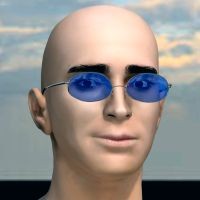
EnglishBob posted Thu, 22 March 2018 at 6:03 AM
An easier alternative: connect your transparency map to the Specular_Value input.
As an aside, you don't need the connection to Transparency_Edge if Transparency_Falloff is zero. It won't hurt to leave it there though.
fireangel posted Thu, 22 March 2018 at 10:26 AM
EnglishBob posted at 3:19PM Thu, 22 March 2018 - #4326583
An easier alternative: connect your transparency map to the Specular_Value input.
As an aside, you don't need the connection to Transparency_Edge if Transparency_Falloff is zero. It won't hurt to leave it there though.
If you connect your transparency map to the specular value input then you can't change specularity on the hair from 1 in the non-transparent areas. That's not the best setting for most colours of hair and may look very unnatural. If you alter the specular colour map you could tone it down that way, but I prefer to have it adjustable in the material shader so the specular value can be tuned for individual lighting setups if need be. It isn't common to have that need, but it is helpful when it arises.
I didn't even think about the actual transparency settings they are unaltered from the original material on the hair. Thanks for coming into the thread, the more people who put in something the better. Improving hair Poser rendering is a big need and I would like to spread knowledge about it as widely as possible. The days of painted on highlights are numbered if this knowledge can be spread around enough.
EnglishBob posted Thu, 22 March 2018 at 11:16 AM
fireangel posted at 4:05PM Thu, 22 March 2018 - #4326592
If you connect your transparency map to the specular value input then you can't change specularity on the hair from 1 in the non-transparent areas.
Try it and see! You can keep the Specular_Value of 0.8 that you have, but it will be multiplied by the transmap plugged into that input. When the map is white, you'll get specularity of 0.8 controlled by your specularity map; when it's black specularity is over-ridden to zero. It's functionally equivalent to what you've done by multiplying your specularity and transparency maps in Photoshop.
I didn't even think about the actual transparency settings they are unaltered from the original material on the hair.
That arrangement is common enough, and I wasn't trying to crtiticise it since it will work. Expert opinion (i.e. bagginsbill!) says that Transparency_Edge is best avoided anyway; it's a hold-over from Poser 4 and no longer works properly. You can achieve a better effect with Edge_Blend, but that's straying off topic.
fireangel posted Thu, 22 March 2018 at 11:34 AM
EnglishBob posted at 4:31PM Thu, 22 March 2018 - #4326602
fireangel posted at 4:05PM Thu, 22 March 2018 - #4326592
If you connect your transparency map to the specular value input then you can't change specularity on the hair from 1 in the non-transparent areas.
Try it and see! You can keep the Specular_Value of 0.8 that you have, but it will be multiplied by the transmap plugged into that input. When the map is white, you'll get specularity of 0.8 controlled by your specularity map; when it's black specularity is over-ridden to zero. It's functionally equivalent to what you've done by multiplying your specularity and transparency maps in Photoshop.
Ah, thank you I learned something! I thought the map would completely overrule the numeric setting, but if it doesn't it is another way of getting the same result. If I can still modify the specular value on those odd occasions when I need to then I will try that method in future as it is slightly less work. Reducing wasted effort is always a good thing.